What it is
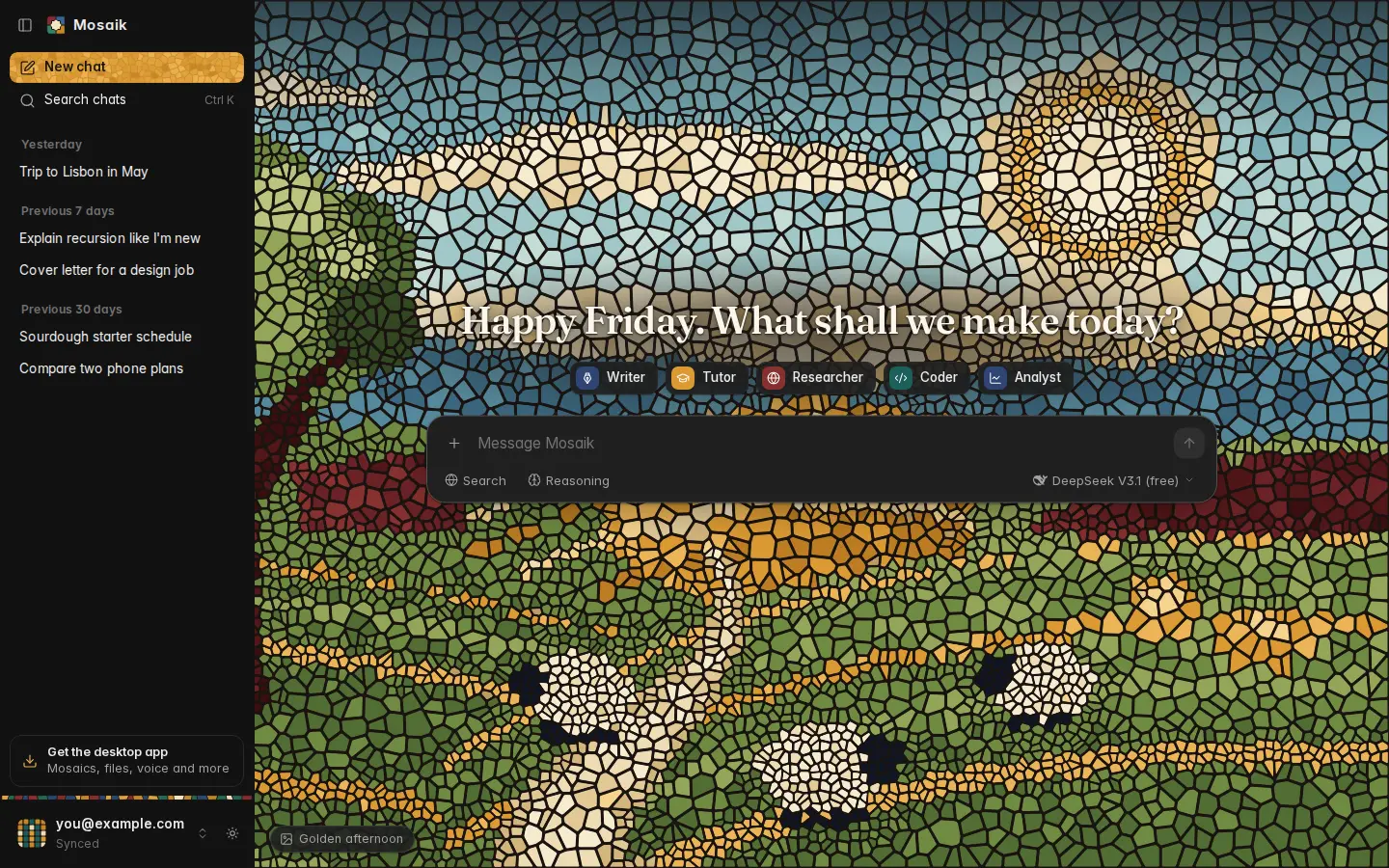
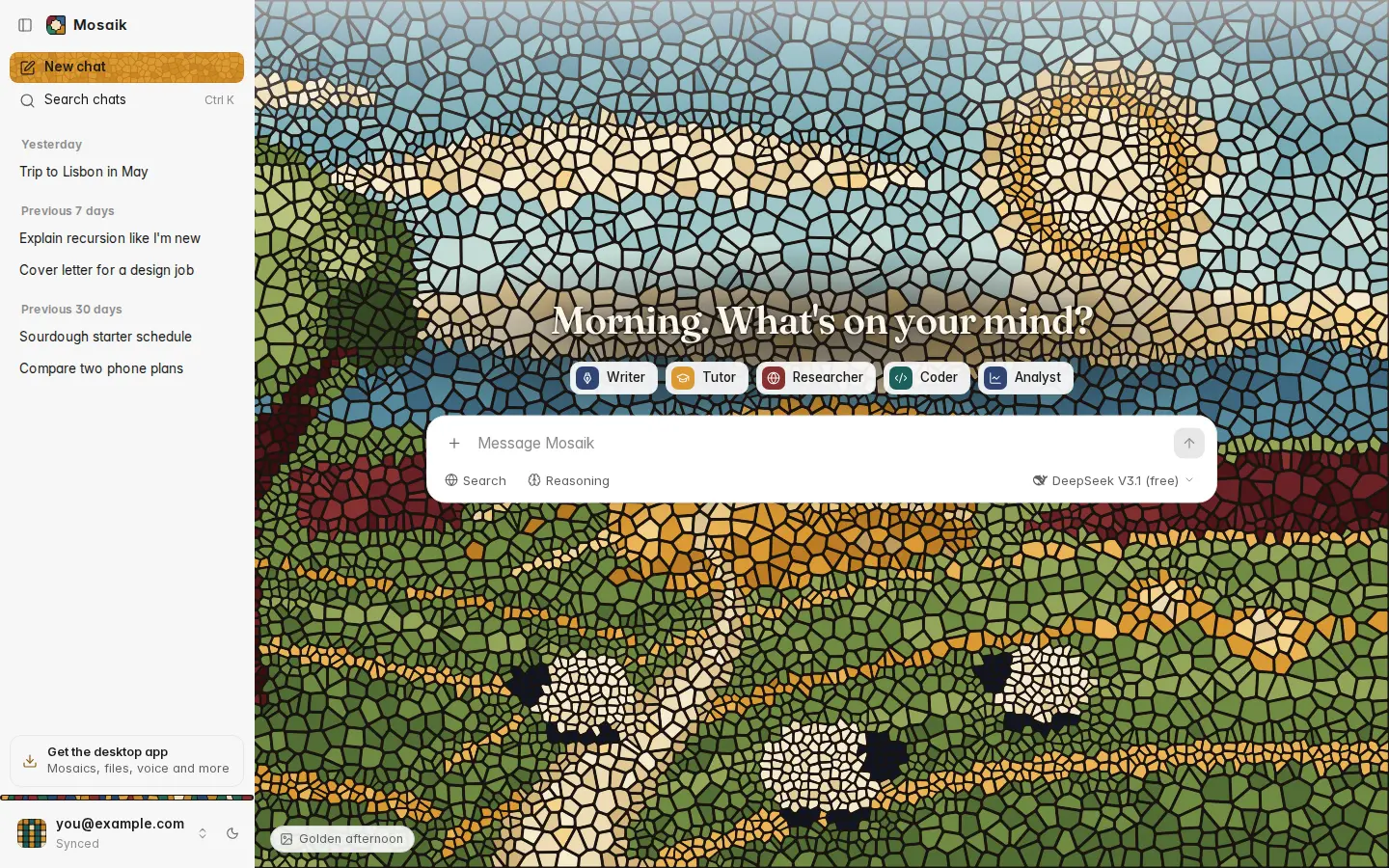
The web chat is a lighter Mosaik that runs in any up-to-date browser, on a computer or a phone. It's the same look and the same way of chatting as the desktop app, with the parts you use every day. Open the web chat.
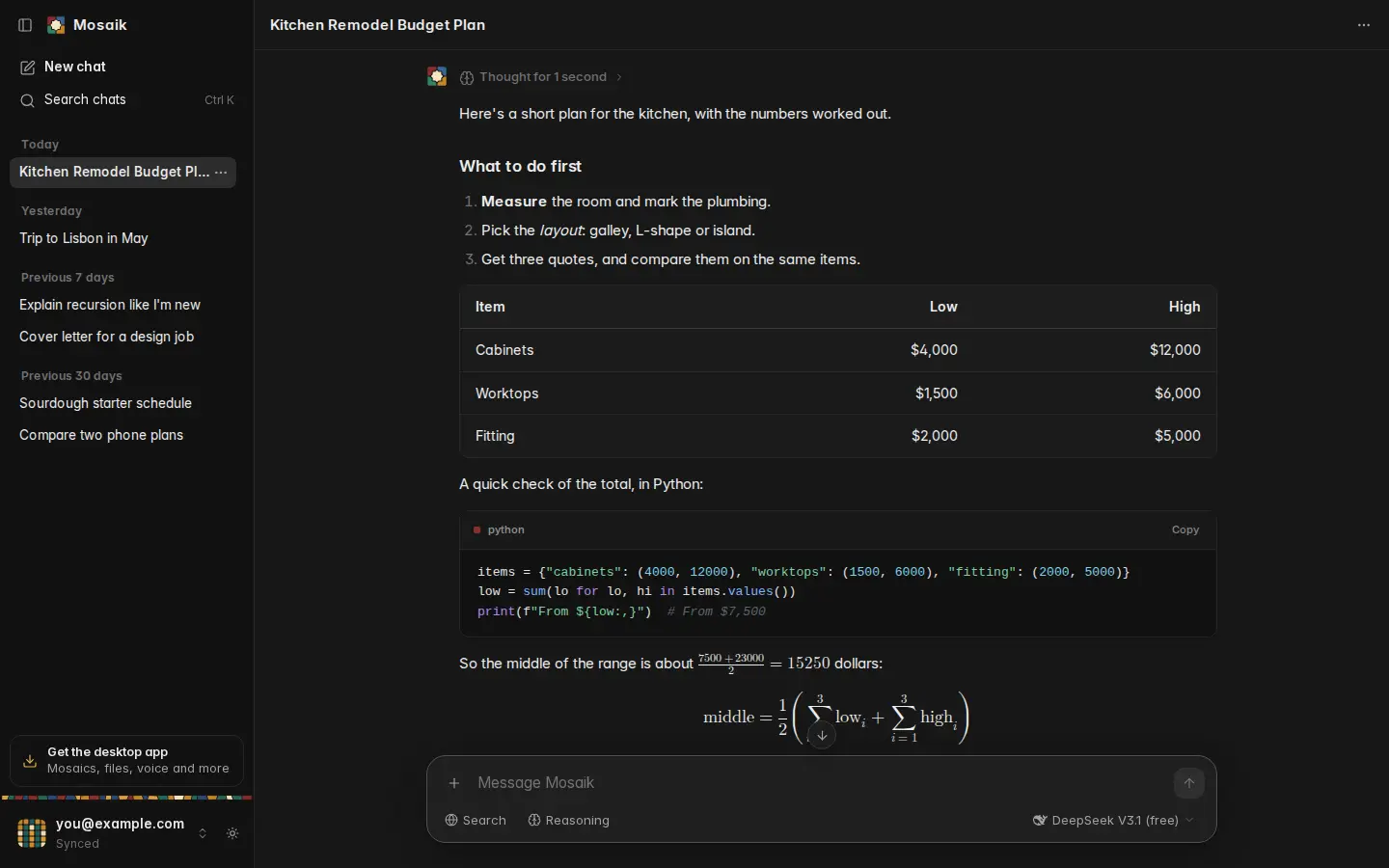
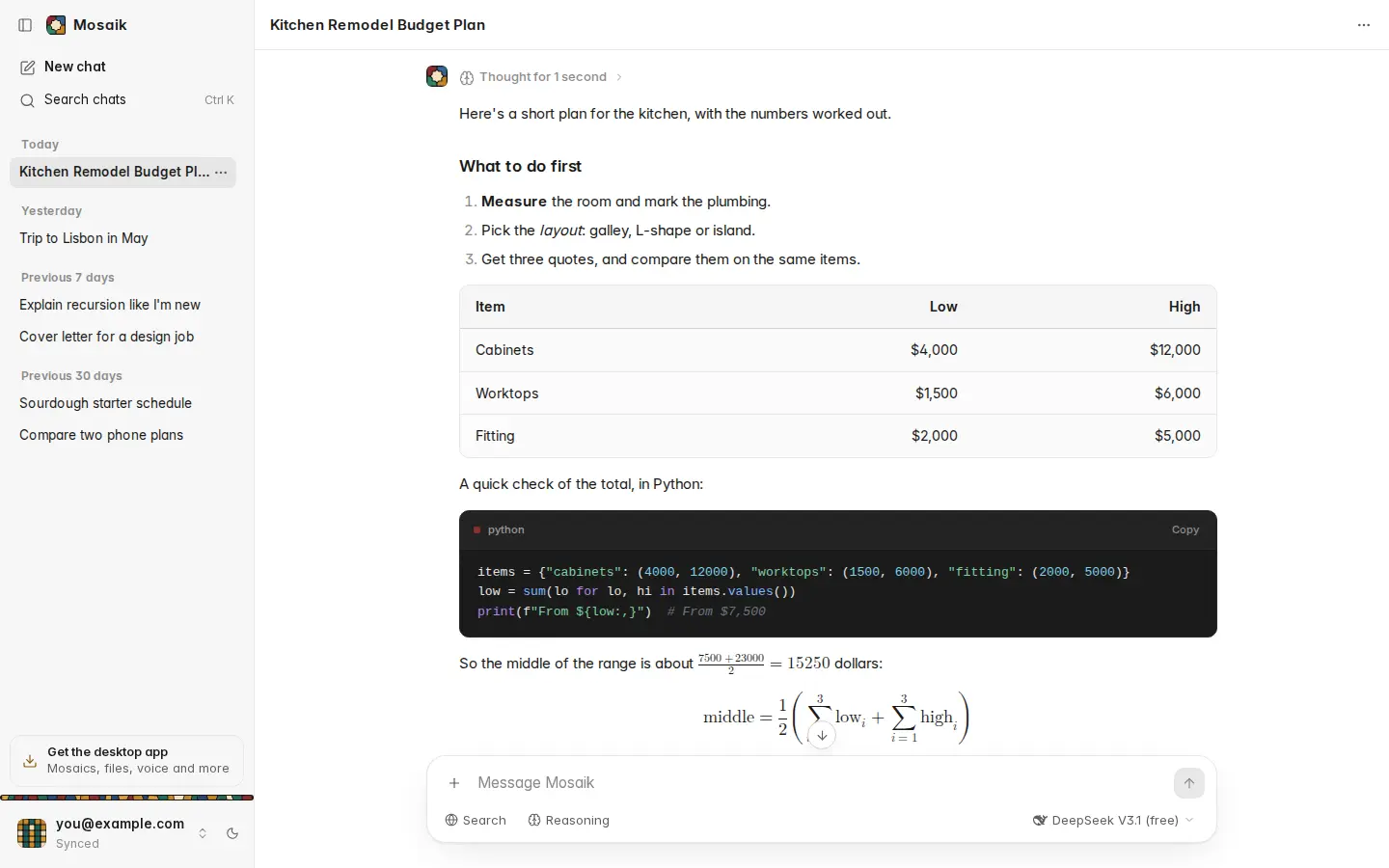
| In the web chat | Hundreds of models through OpenRouter, free ones included. Web search, reasoning, pictures, PDFs and text files, the five assistants, custom instructions, editing and regenerating, searching your chats, pins, Markdown export, maths, code and tables. |
|---|---|
| Desktop app only | Mosaics, the exact tools (calculator, Python and the rest), styled answers and designs, files the model hands back, voice, Ask from anywhere, comparing models, memory, spending limits and models on your computer. |
You don't need a Mosaik account, and nothing you write goes to mosaikchat.com: your messages go from your browser straight to OpenRouter. Sign in to a free Mosaik account and your chats sync with the desktop app, encrypted so we can't read them (see Sync with the desktop app).
Connect OpenRouter
The web chat reaches models through OpenRouter, one account for models from OpenAI, Anthropic, Google, Meta, DeepSeek and others. Mosaik isn't part of OpenRouter or affiliated with it. An OpenRouter account is free, and free models need no card.
- On the New Chat page, click Connect AI, then Sign in with OpenRouter.
- Sign in, or make a free account. OpenRouter shows mosaikchat.com asking for access. Click Authorize.
- You're back in the chat, ready to go. Anything you'd typed is still in the box.
Signing in makes a key named Mosaik on your OpenRouter Keys page. To use a key you made yourself, choose Use an OpenRouter key instead, or open Settings › OpenRouter. The key is checked before it's saved.
The key stays in this browser and is only ever sent to OpenRouter. Remove key in Settings › OpenRouter forgets it; delete it on the Keys page to turn it off for good.
Chatting
- Ask. Type and press Enter. On a phone, tap the send button. The answer streams in, and keeps going if you switch to another chat.
- Stop. The send button turns into a stop button while the model writes. What's written so far is kept.
- Edit or try again. Point at your message and click the pencil to change it and send it again. Under the latest answer, Try again writes a new one.
- Continue. When an answer hits the model's length limit, a Continue button picks up where it stopped.
- Assistants. Writer, Tutor, Researcher, Coder and Analyst sit on the New Chat page. Pick one before you send, and the chat keeps its way of working. The Researcher searches the web whenever the model can.
- Your instructions. Settings › Instructions › Custom instructions go with every new message, in every chat.
- Find it later. Chats name themselves. Search chats looks through titles and messages. The … beside a chat pins it to the top, renames it, saves it as Markdown or deletes it.
Answers show tables, highlighted code with a copy button, and maths drawn properly. Under each answer you'll see the model, the tokens it used and what it cost.
When something goes wrong, the answer says what happened in plain words, with a button to fix it where there is one: Try again, Use a free model, or Add credit. What OpenRouter said shows the exact message.
Models, search and reasoning
The button at the right end of the message box picks the model. It suggests one model for each of Free, Low cost, Balanced and Most capable, lists the ones you used recently, and Browse all models searches everything OpenRouter offers. Each chat keeps the model it started with. Settings › Models sets the one new chats start with.
| Search: Off | The default. Answers come from what the model knows. |
|---|---|
| Search: Auto | Models that can use tools search when an answer needs checking. |
| Search: Always | Every message is searched first. |
Searches run on OpenRouter and cost a little each, usually a cent or two, even with a free model. The sites an answer used are listed above it.
For models that can think before they answer, the Reasoning button sets how hard: Auto lets each model decide, or pick Off, Low, Medium or High. The thinking shows in a small window above the answer; click it to read it all. The default for new chats is in Settings › Models › Advanced settings, and the default for search in Settings › Web search.
Pictures, PDFs and text files
Click +, drop files on the page, or paste them. A message can carry up to 10 files:
- Pictures go to models that can see. Big ones are made smaller first.
- PDFs up to 15 MB. Models that can't read a PDF get its text, through OpenRouter's free PDF reader.
- Text files up to 512 KB, such as code, CSV, Markdown or JSON, go along as text.
Where your chats are kept
Your chats, your settings and your OpenRouter key are kept in this browser, on this device. Signed out, they aren't sent to mosaikchat.com at all. Signed in, your chats and settings also sync with your account, encrypted first (see below). Tabs of the web chat in the same browser stay in step.
Settings › Your data shows how many chats are kept, and has:
- Export all chats: one file with every chat in it, attachments included. Keep it as a backup, or move your chats to another browser.
- Import chats: adds the chats from such a file to the ones here.
- Delete all chats: starts over.
Clearing this site's data in your browser deletes your chats too, and a private window forgets them when it closes. If the browser won't let the site keep them, the chat says so.
Sync with the desktop app
Click Sign in to sync at the bottom left, and sign in with Google or an email and password. You come straight back to the chat, and sync runs on its own from then on: a change goes out a moment after you make it, and the app's changes come in while the page is open.
- The first place you sign in turns sync on and shows a recovery code once. Keep it somewhere safe, like a password manager.
- Anywhere else, the browser asks the computers already signed in. Click your account at the bottom left on one of them, check that both show the same six digits, and approve it. Or type your recovery code in Settings › Account and sync.
Your chats and their messages sync, with your default model, custom instructions, web search, the New Chat picture and light or dark. Attached files stay in the browser or on the computer they were attached on; the other side shows their names. Your OpenRouter key never syncs. Everything is encrypted in your browser before it's sent, with a key only your computers and browsers hold, so mosaikchat.com stores only what it can't read. See Accounts and sync.
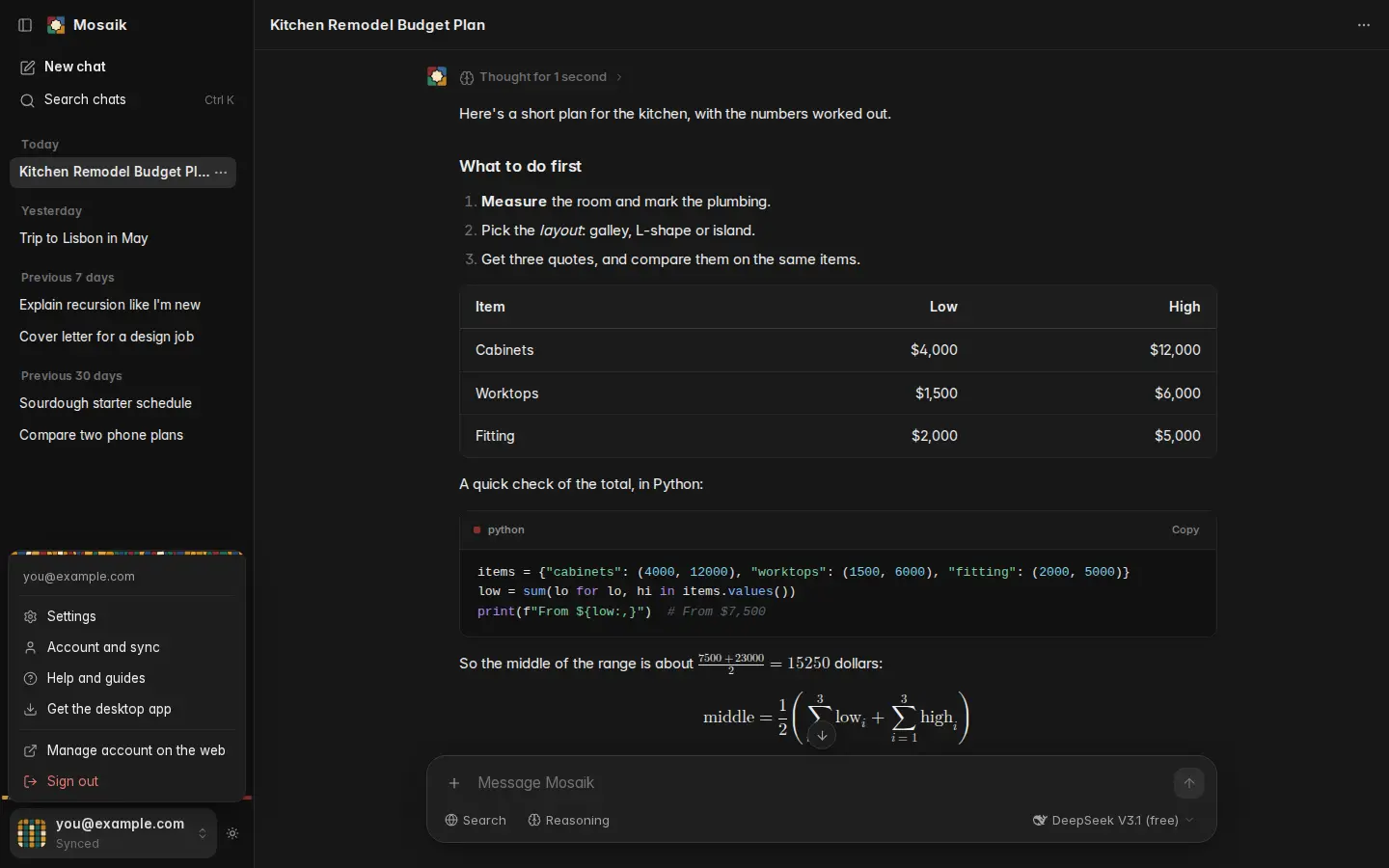
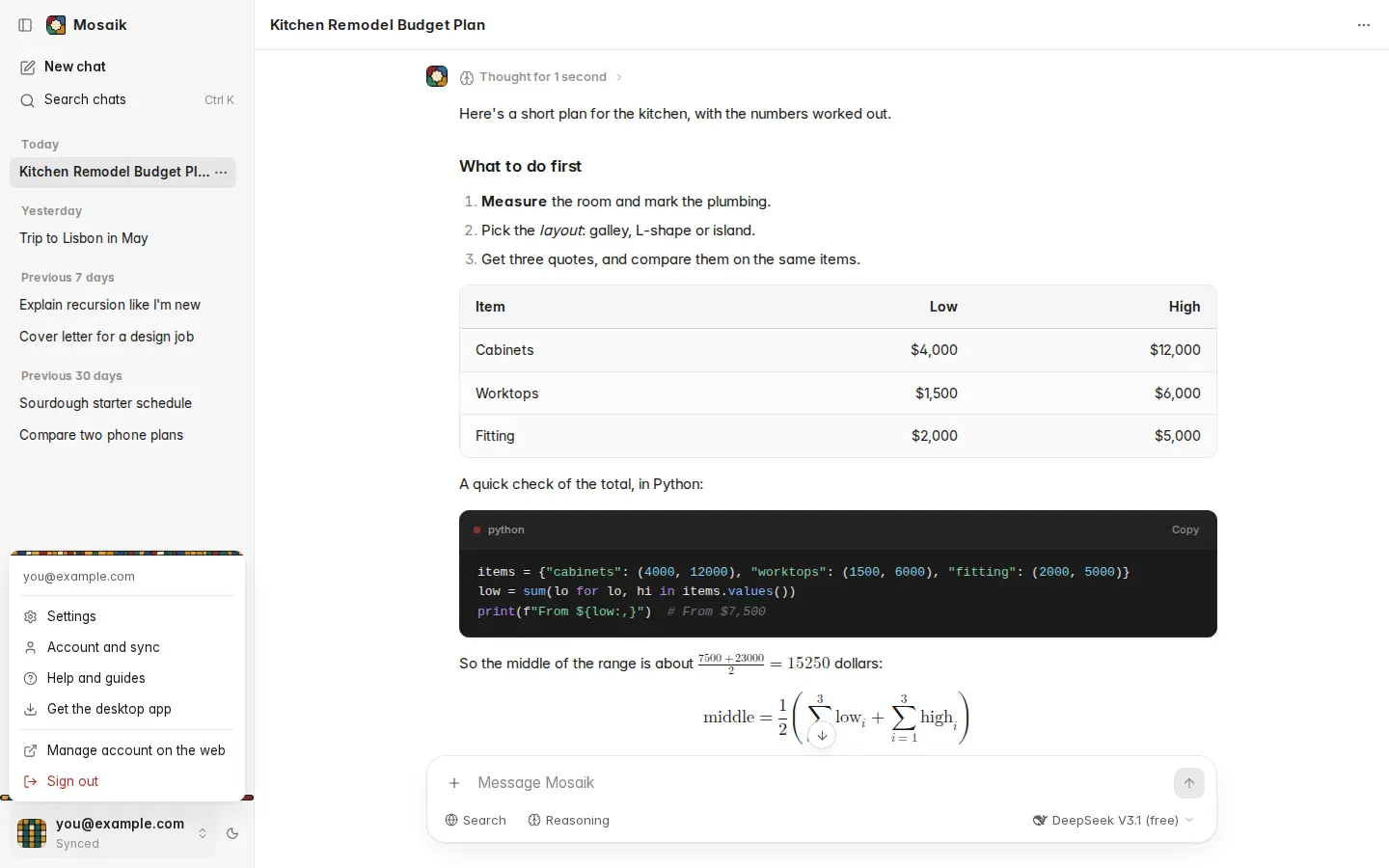
The account menu at the bottom left also has Settings, help, and Sign out. Signing out stops sync in that browser; its chats stay.
How it looks
Settings › Appearance picks light, dark or your system's theme, shared with the rest of mosaikchat.com, the text size in chats, and the mosaic picture on the New Chat page. Auto changes the picture with the time of day, as in the desktop app.
Settings is laid out as in the desktop app, with the same page names: OpenRouter under Account; Models, Instructions and Web search under Assistant; Appearance and Your data under App. The search at the top of its list finds any setting, in your own words (dark mode finds the theme). Press Ctrl+F while Settings is open to jump to it, and Esc to clear it.
Keyboard shortcuts
| Enter | Send |
|---|---|
| Shift Enter | New line |
| Esc | Stop the answer being written, or close a window |
| Ctrl K | Search chats |
| Ctrl Shift O | New chat |
On a Mac, use ⌘ for Ctrl.