Signing in
An account is free, and you don't need one: without it, Mosaik works the same and your chats stay on the computer you're using. With one, they're the same on every computer you sign in on.
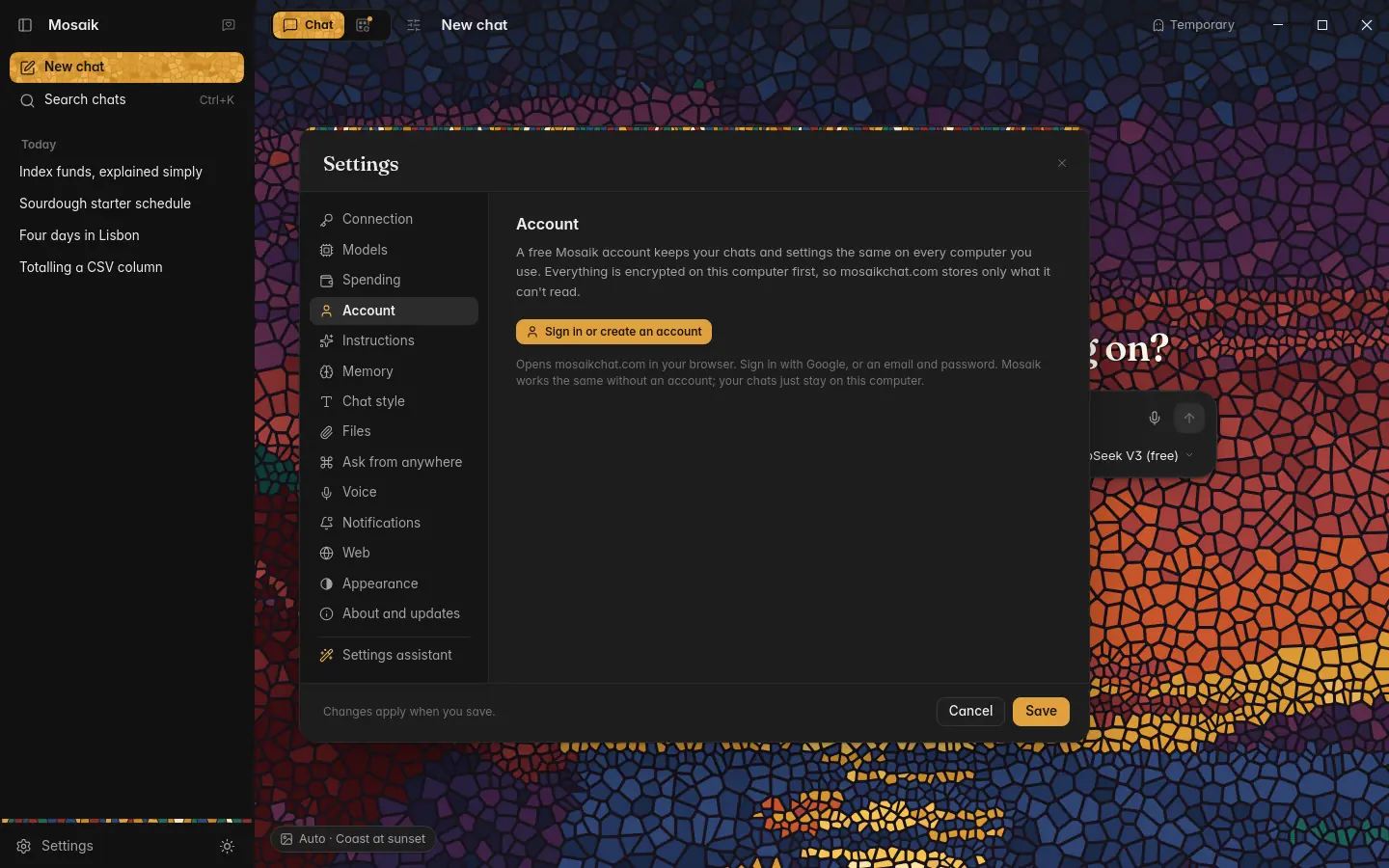
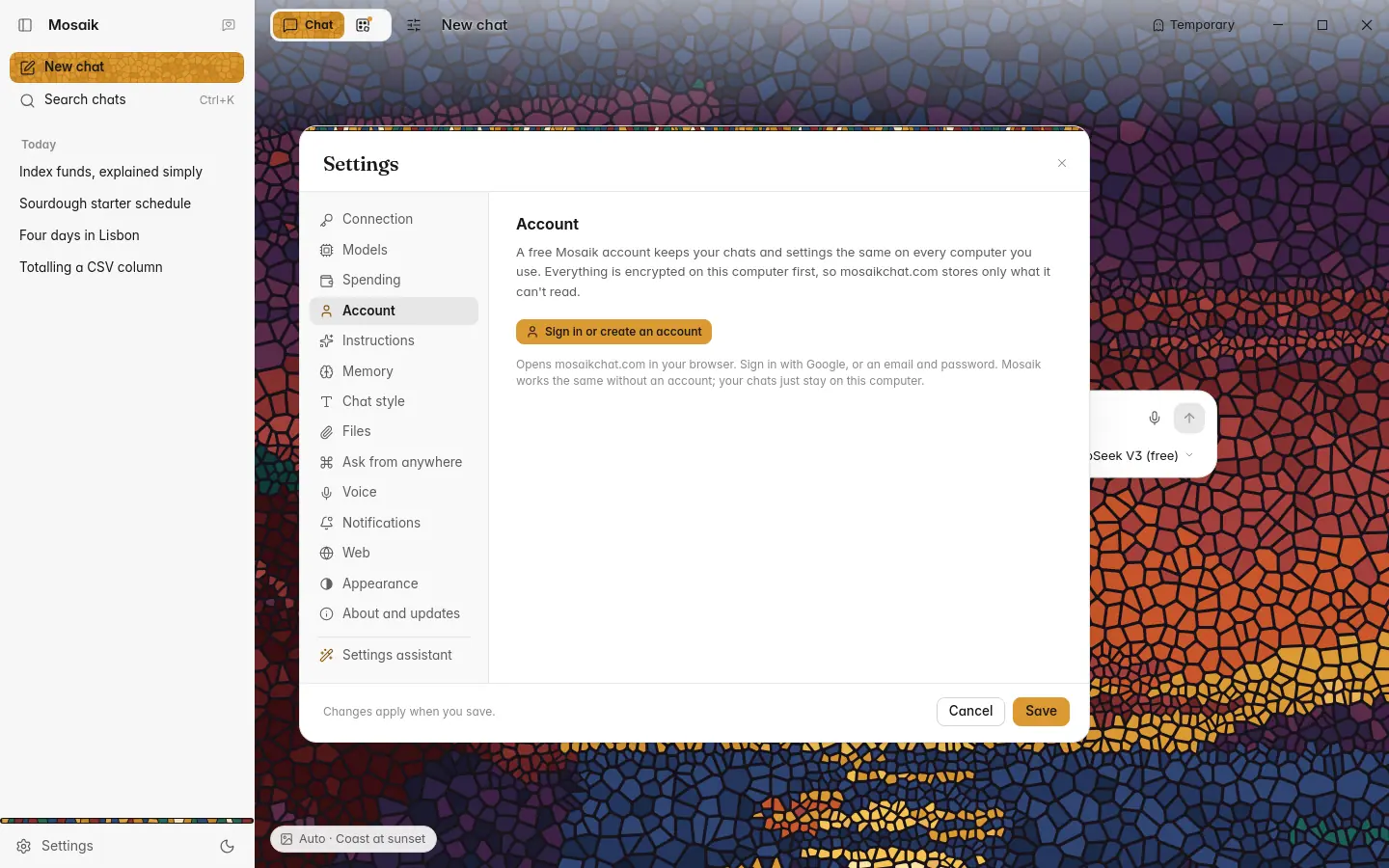
Open Settings › Account and click Sign in or create an account. Mosaik opens mosaikchat.com in your browser, where you sign in with Google, or with an email and password. A new account with a password gets a six-digit code by email to type in, so nobody can make an account in your name. Then click Continue to Mosaik, and Mosaik is signed in.
What syncs
The first computer you sign in on turns sync on by itself. After that, a change goes out a few seconds after you make it, and other computers' changes come in when you bring Mosaik to the front, every few minutes while it's open, or when you click Sync now.
| Syncs | Chats and their messages, including every version of an answer, chat folders and pins, summaries, what Mosaik remembers about you, your assistants and prompts, documents open beside a chat, and settings such as the theme, models, spending limits, search and privacy. |
|---|---|
| Stays on this computer | Temporary chats, attached files, Mosaics, your OpenRouter key and other keys, and settings that belong to one computer, such as how it draws its window or the Ask from anywhere shortcut. |
Everything that syncs is encrypted on your computer before it's sent, with a key only your computers hold. mosaikchat.com stores it but can't read it. If the same thing changes on two computers, the newer change wins. Each account can sync up to 250 MB.
A chat that has a file attached shows the file's name on your other computers, without the file itself.
Adding another computer
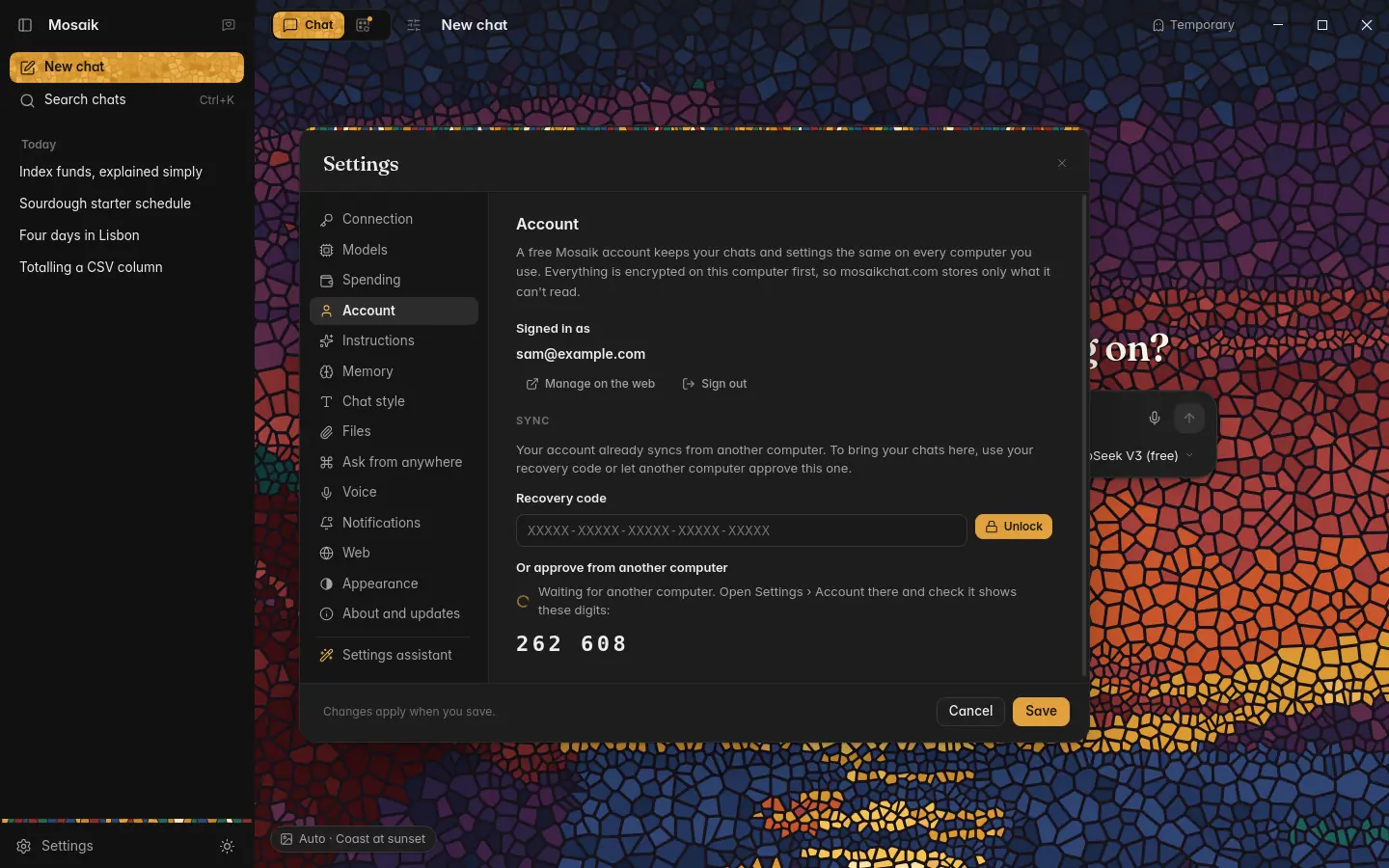
Sign in on the new computer the same way. Because only your computers hold the key, the new one needs it before your chats can come in. There are two ways to give it:
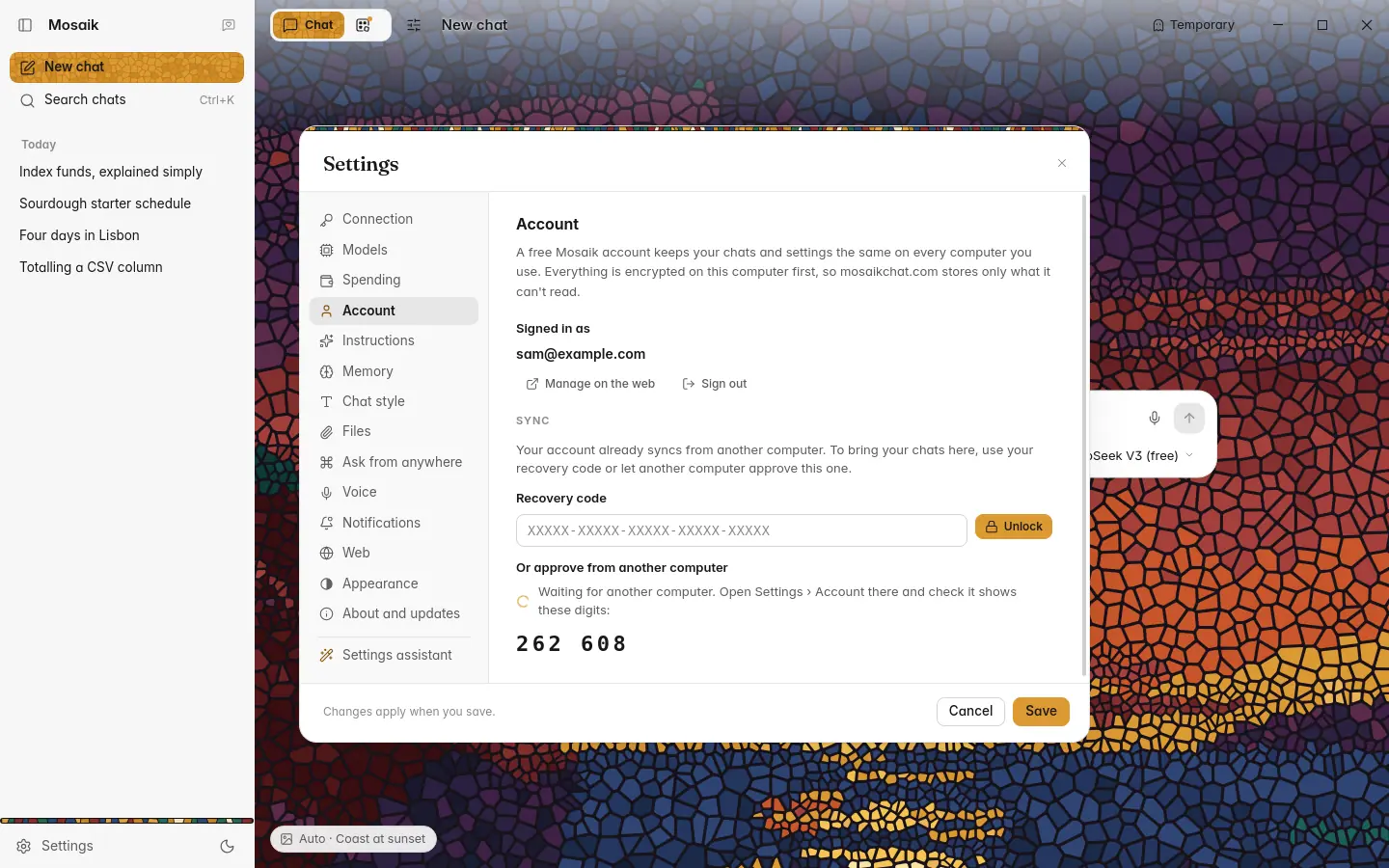
- Ask another computer. Click Ask another computer. On a computer that's already signed in, Settings › Account shows the request. Check that both screens show the same six digits, and click Approve.
- Use your recovery code. Type it in and click Unlock.
A computer that joins takes your account's settings rather than sending its own. Chats already on it are added to your account.
Your recovery code
When sync turns on, Mosaik shows a recovery code once: 25 letters and digits. Keep it somewhere safe, like a password manager. It's how a new computer gets in when no other computer is around to approve it.
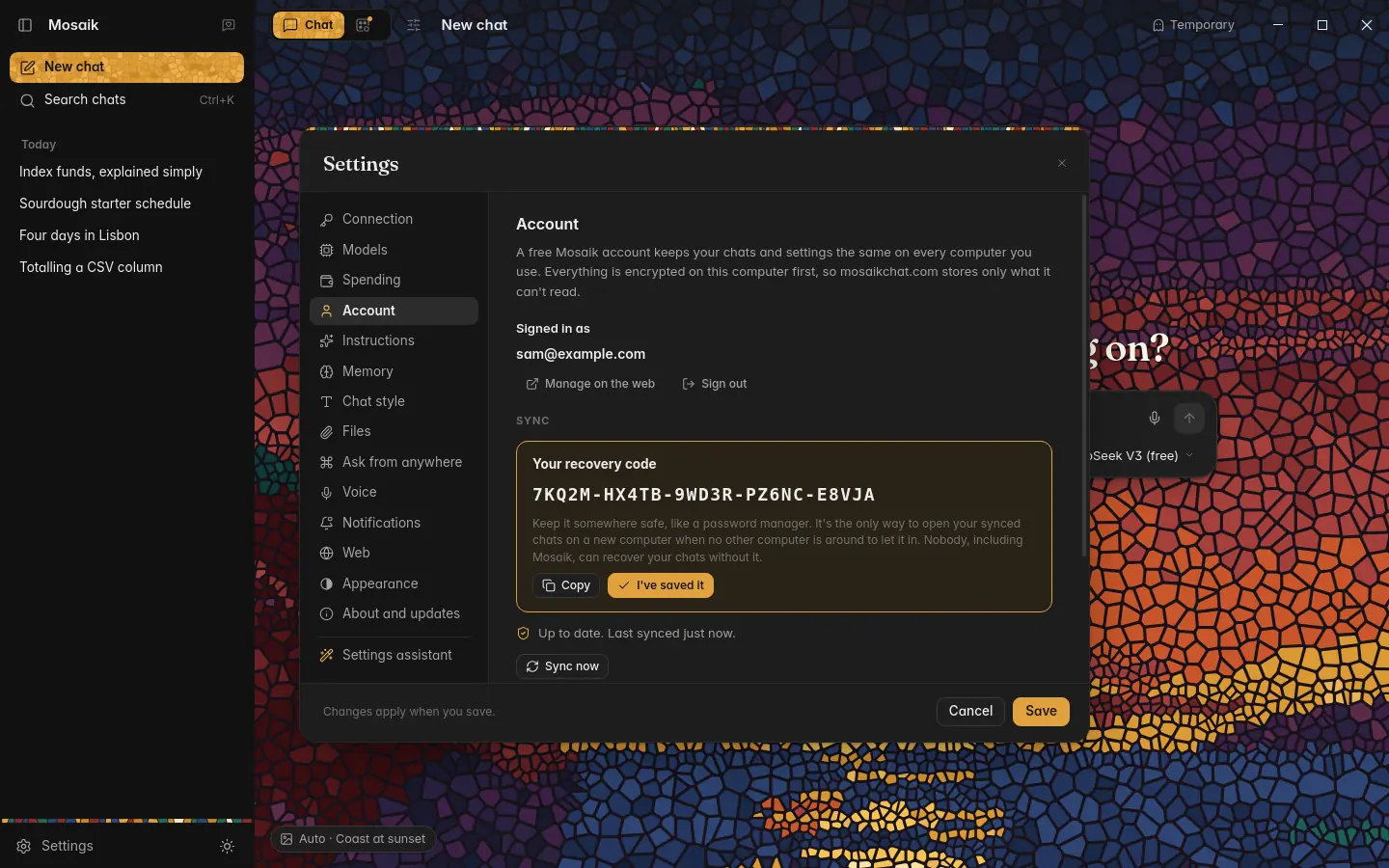
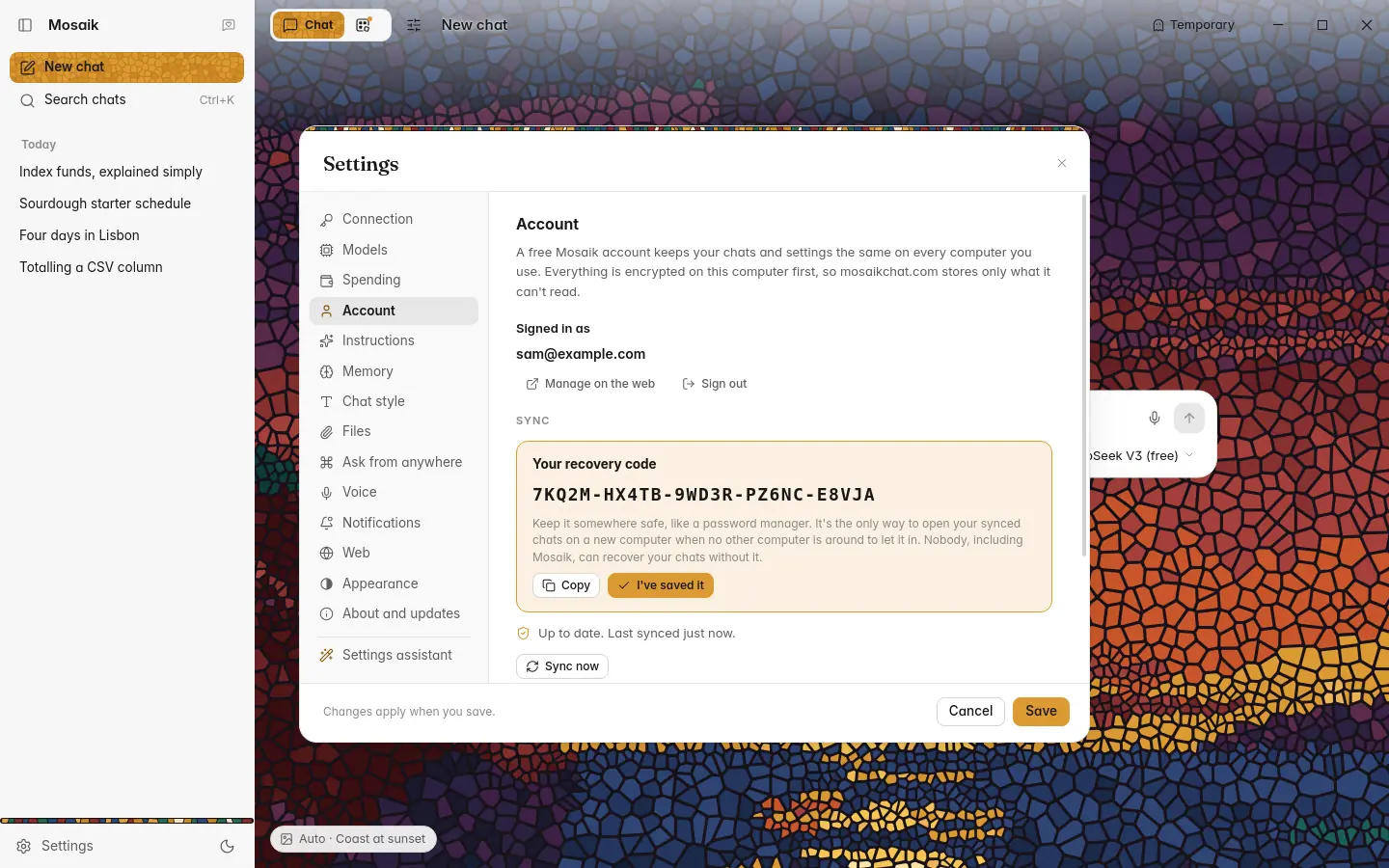
Nobody, including us, can see your synced chats without your computers or the code. If you lose the code but still have a signed-in computer, click Make a new recovery code there; the old code stops working.
Your account page
mosaikchat.com/account (or Manage on the web in Settings › Account) shows how much space sync uses and every browser and computer that's signed in. From there you can:
- sign a computer out, for example one you no longer have;
- change your password, or add one to an account you made with Google;
- download everything we hold about your account;
- delete your account, which removes it and all synced data at once. Your chats stay on your computers.
Signing out in Mosaik stops sync on that computer and keeps its chats.