
Updating
Mosaik keeps itself up to date. A little after it starts, and every six hours after that, it asks mosaikchat.com whether there's a newer version. The question carries only Mosaik's version and your Windows version. If there is one, Mosaik downloads the installer from GitHub in the background, checks its size and SHA-256, and installs it when you close Mosaik. To install straight away, click Restart to update in the sidebar.
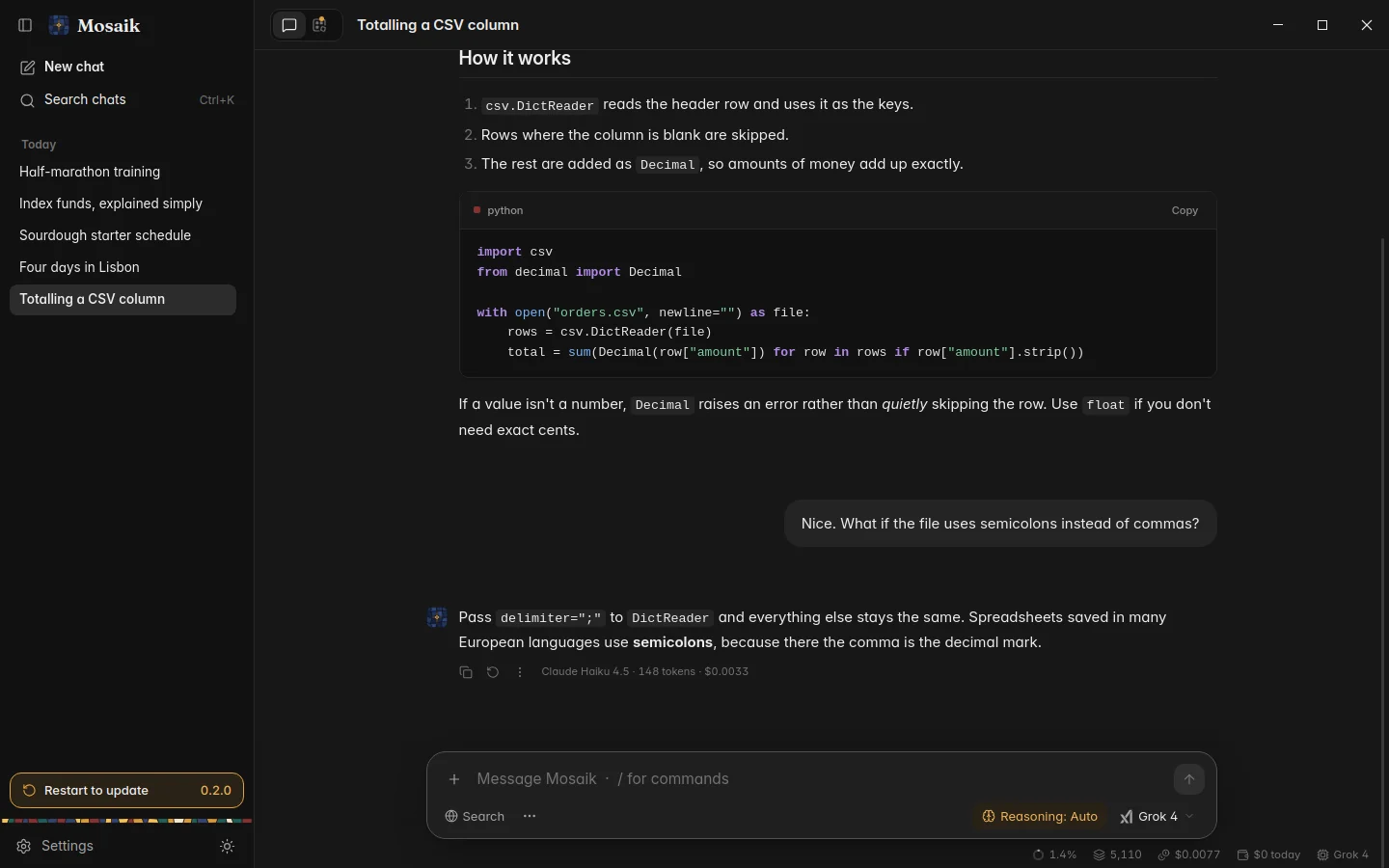
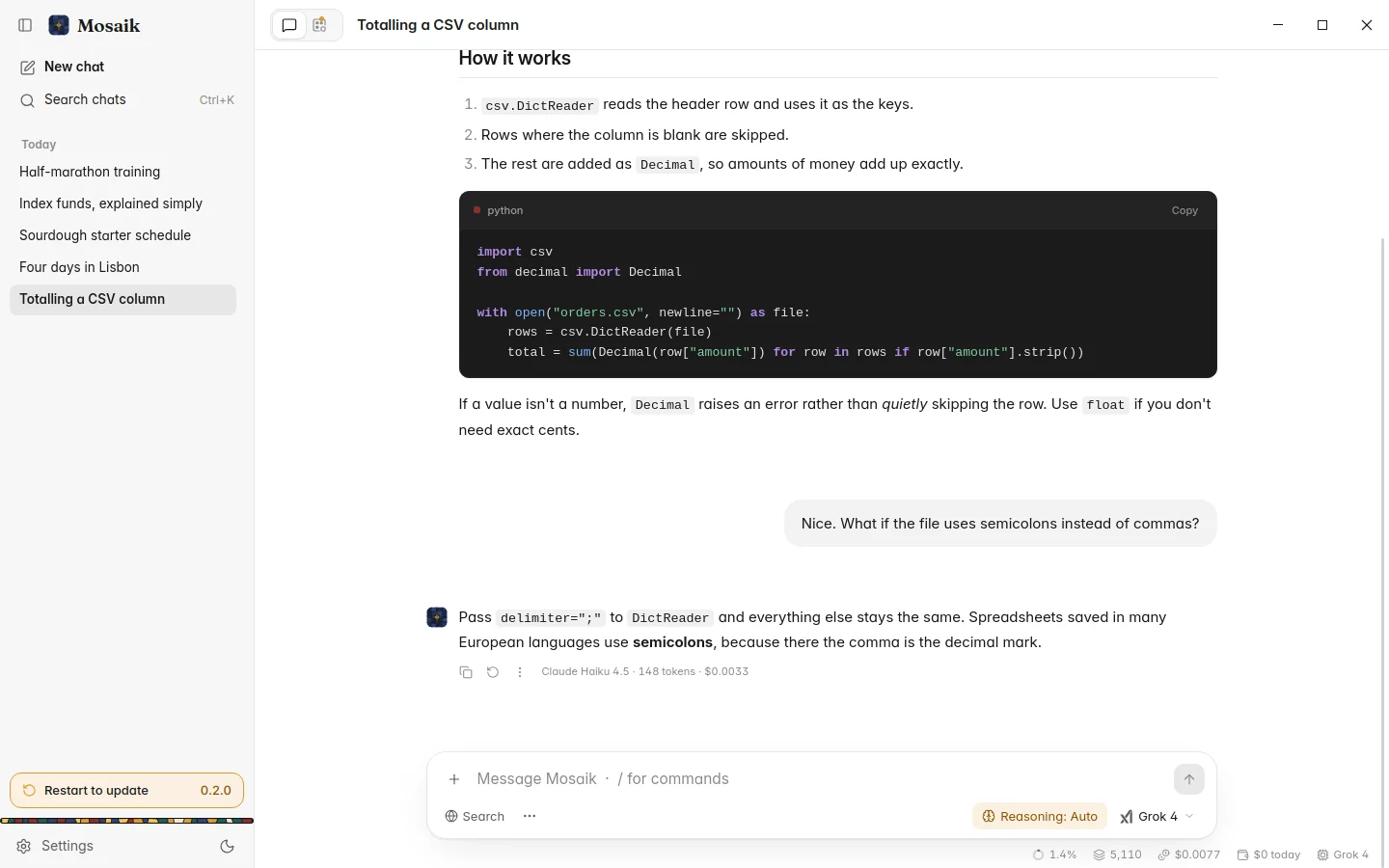
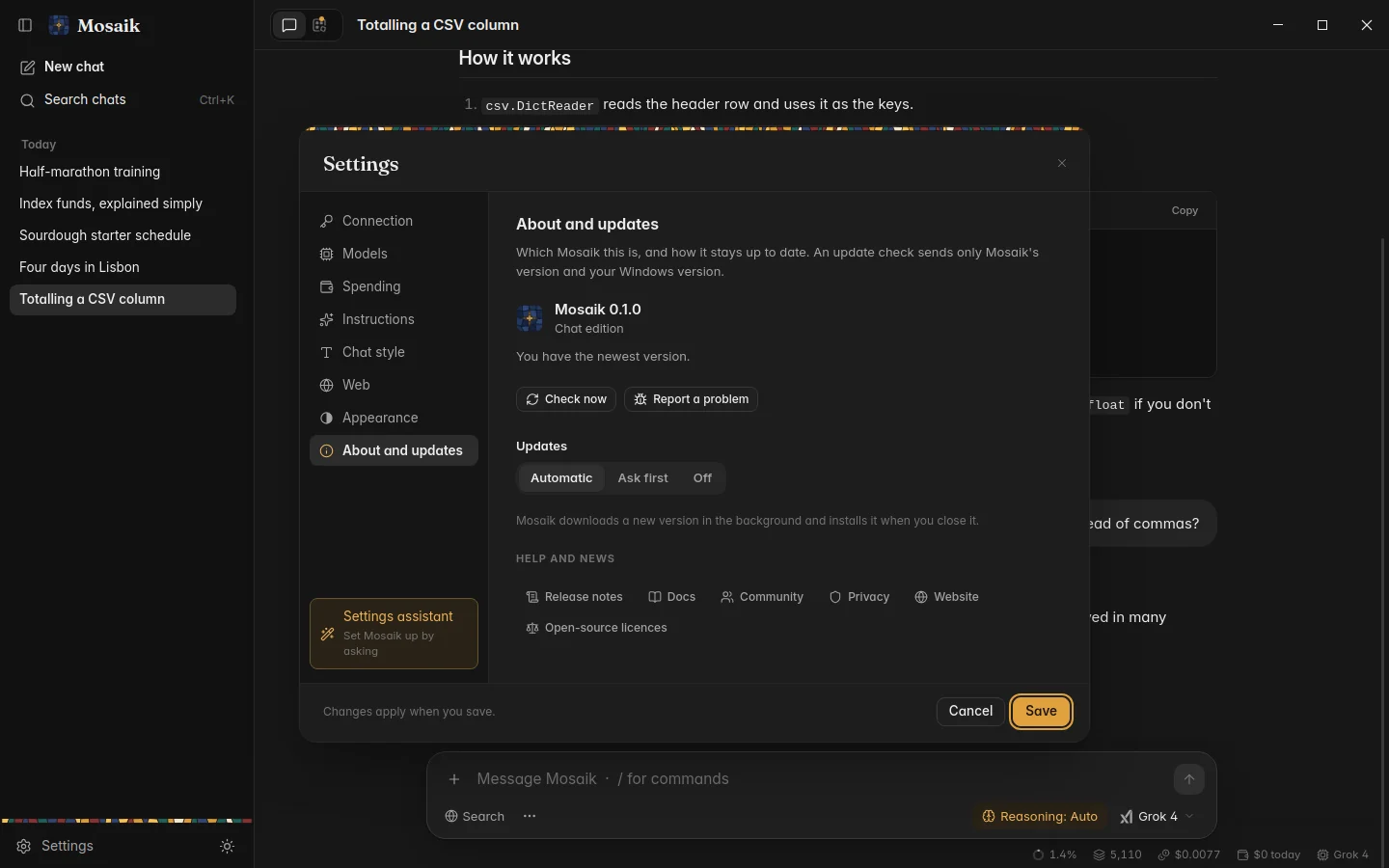
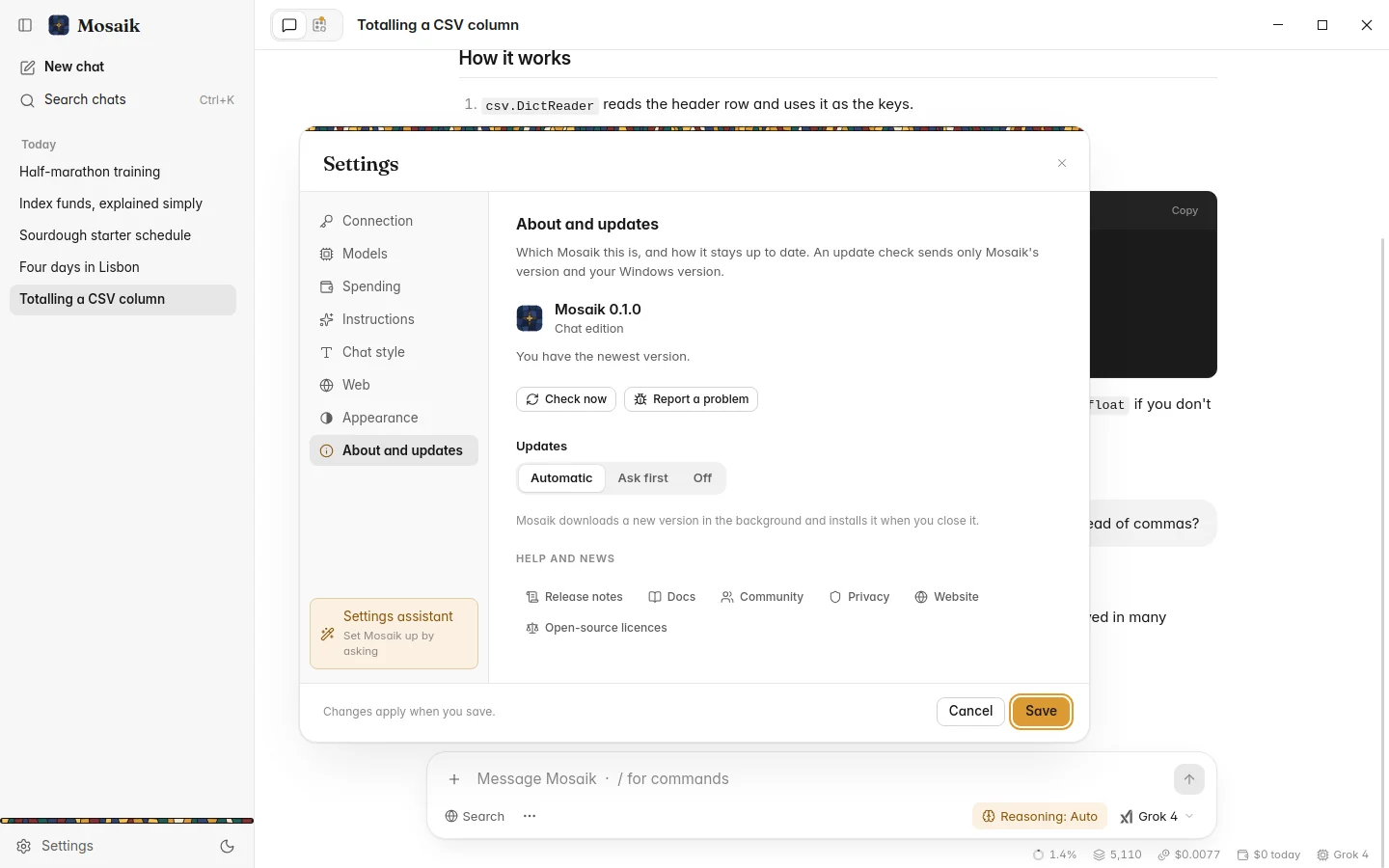
Settings › About and updates chooses how this works:
| Automatic | The default. Downloads new versions in the background and installs them when you close Mosaik. |
|---|---|
| Ask first | Says in the sidebar when a new version is out, and downloads it when you say so. |
| Off | Never checks on its own. Check now still works. |
You can also update by hand: download the newest installer and run it over the old one. Updates keep your chats, settings and key. The release notes say what changed.
Where your data lives
Everything Mosaik keeps is on your computer, in two places.
%APPDATA%\Mosaik\Mosaik | Your chats, settings and spending records (in mosaik.sqlite3), pictures from your chats, cached site logos, and the log, mosaik.log. Paste the path into File Explorer's address bar to open it. |
|---|---|
| Windows Credential Manager | Your OpenRouter key, if you chose to remember it. It's under Windows Credentials, as Mosaik. |
The program itself is in %LOCALAPPDATA%\Programs\Mosaik. Nothing you make is
kept there, so updates and reinstalls never touch your data.
Backing up and moving to another PC
Close Mosaik, then copy the %APPDATA%\Mosaik\Mosaik folder somewhere safe.
That's the whole backup. To restore it, or to move to another PC, install Mosaik there, close
it, and put the folder back in the same place. Your key isn't in the folder, so paste it
into Settings › Connection once on the new PC.
For a single chat, export it with Ctrl E (Markdown) or Export as JSON in the palette.
Uninstalling
Open Windows Settings › Apps › Installed apps, find Mosaik and choose Uninstall.
That removes the program and leaves your data, so a reinstall picks up where you left off. To remove everything:
- Delete the
%APPDATA%\Mosaik\Mosaikfolder. - Remove the key: turn off Remember it securely in Settings › Connection before you uninstall, or delete the Mosaik entry under Windows Credentials in Credential Manager. You can also delete the key itself on OpenRouter's Keys page.