
The Settings pages
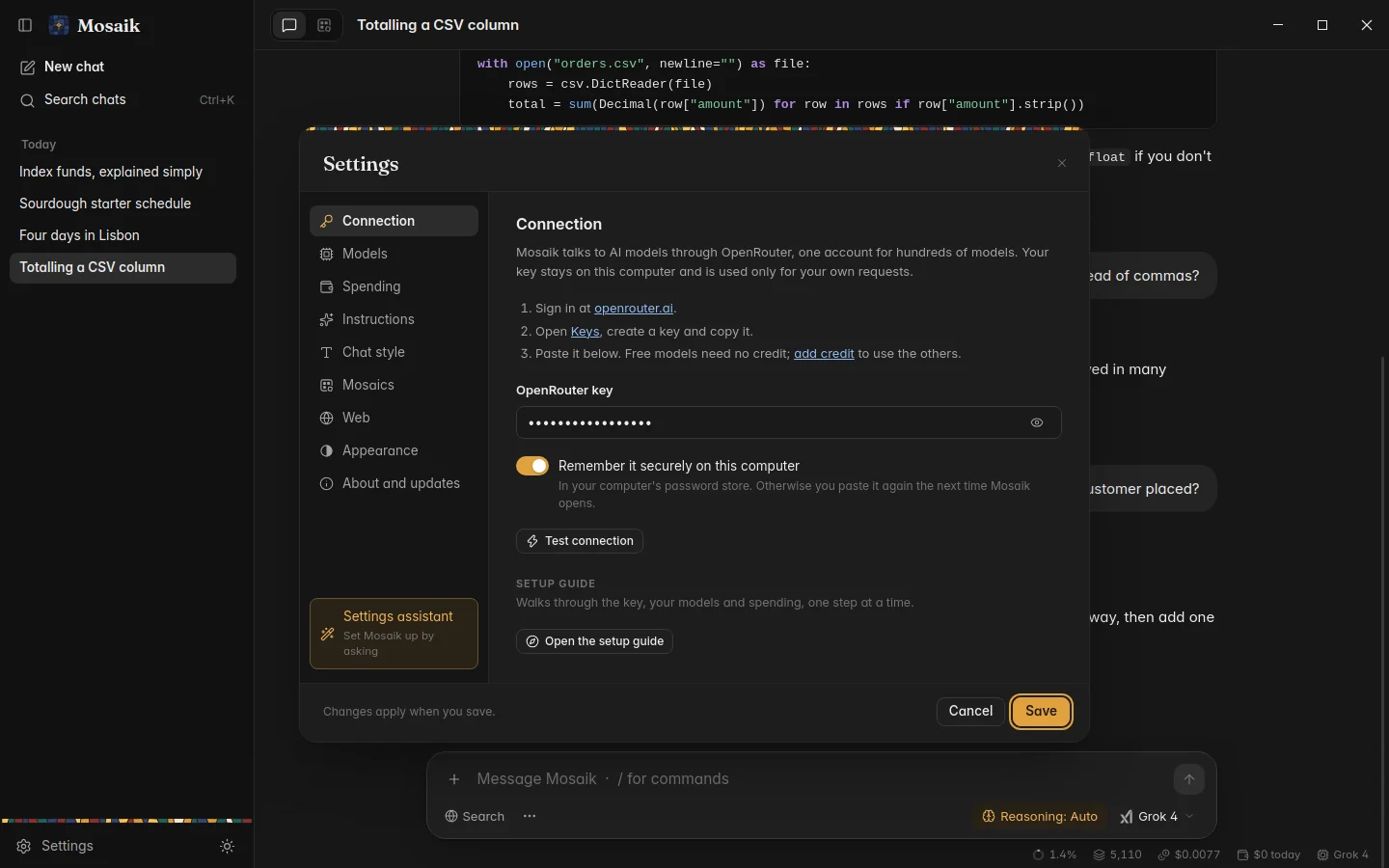
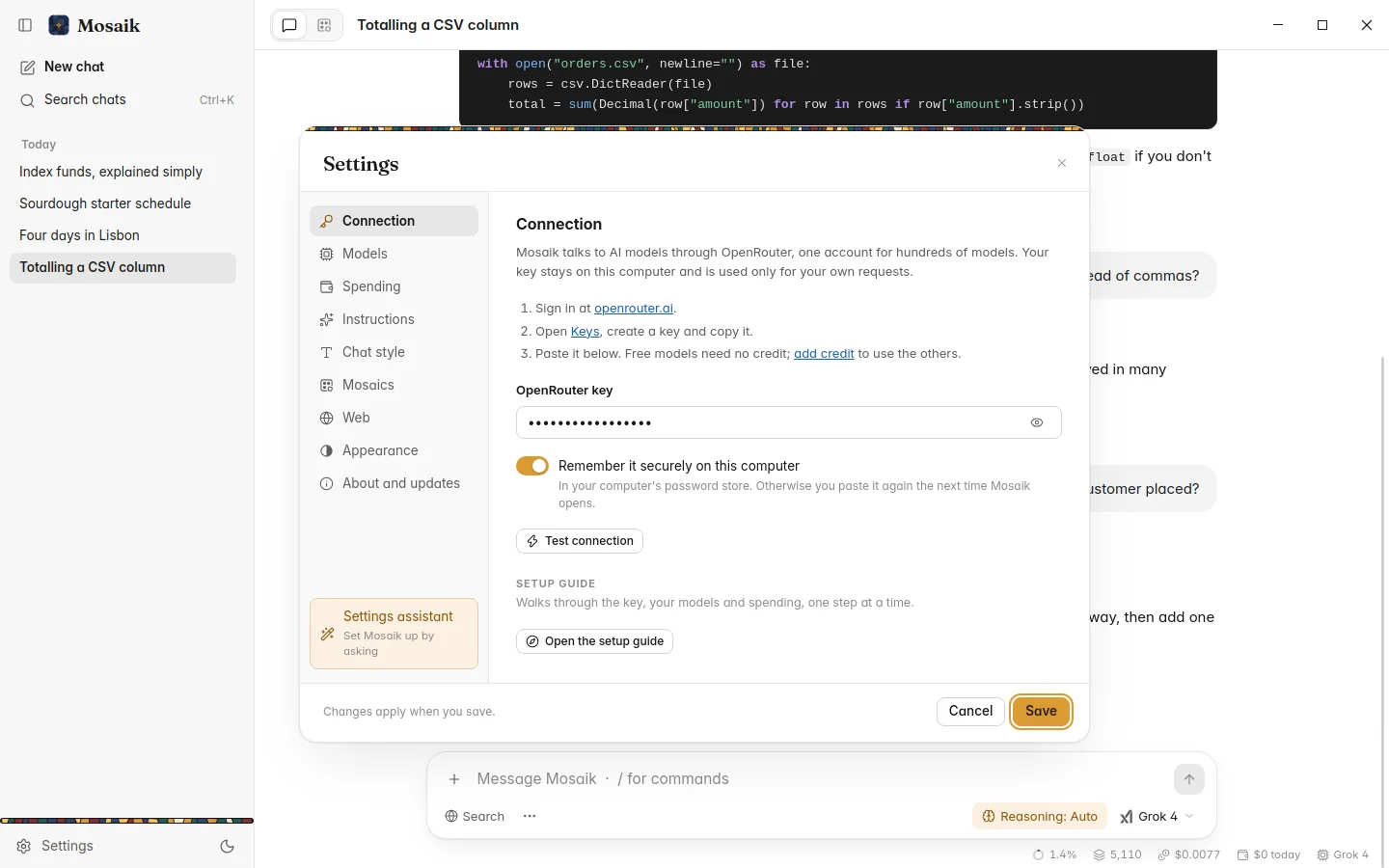
Open Settings with Ctrl , or the Settings button at the foot of the sidebar. Changes apply when you click Save. Settings most people never need are folded into an Advanced section at the bottom of each page.
| Connection | Your OpenRouter key, whether it's remembered, Test connection, and the steps for getting a key. |
|---|---|
| Models | Presets, the model for each job, recommended models with Test, and under Advanced, providers and falling back to another free model. |
| Spending | What you've spent, the daily and monthly limits, and the switch for paid models. |
| Instructions | Your custom instructions for every chat. Under Advanced: Mosaik's guidance, temperature, the longest answer, and how many recent messages go with each request. |
| Chat style | Text size, spacing, reading width, and how much styling answers get. |
| Web | Search on or off, whether to read the top results in full, and your own SearXNG. |
| Appearance | Light, dark or the same as Windows, reduced motion, tips and the setup guide. Under Advanced: how the window is drawn. |
| About and updates | Your version, how updates happen, Check now, and Report a problem. |
| Settings assistant | Change settings by saying what you want (below). |
Instructions
Custom instructions go with every chat: who you are, what you do, how you like answers. Keep them short and specific.
Every chat also starts with Mosaik's guidance, which you don't have to write: today's date, when to search, and how to write a clear answer (the answer first, length to fit the question, no flattery or filler). Your instructions come after it and win wherever the two disagree. To send only your own, turn the guidance off under Advanced.
Also under Advanced:
- Temperature: lower is focused and predictable, higher is more varied. 0.7 to start with.
- Longest answer, in tokens.
- Recent messages sent: how much of the conversation goes with each request. 40 to start with, or all.
One chat's own settings
Ctrl /, or Chat settings in the message box's … menu, gives the open chat its own model, instructions, temperature and answer length. Anything you leave on the default follows Settings. While a chat has settings of its own, the message box shows a Custom tag.
A branch starts with the same settings as the chat it came from.
The prompt library
Instructions you use again and again, like “Translator”, “Code reviewer” or “Explain it simply”, can be saved with a name in the prompt library and given to any chat from its settings. Open it from the message box's … menu. Deleting a saved prompt doesn't take it away from the chats that already use it.
The Settings assistant
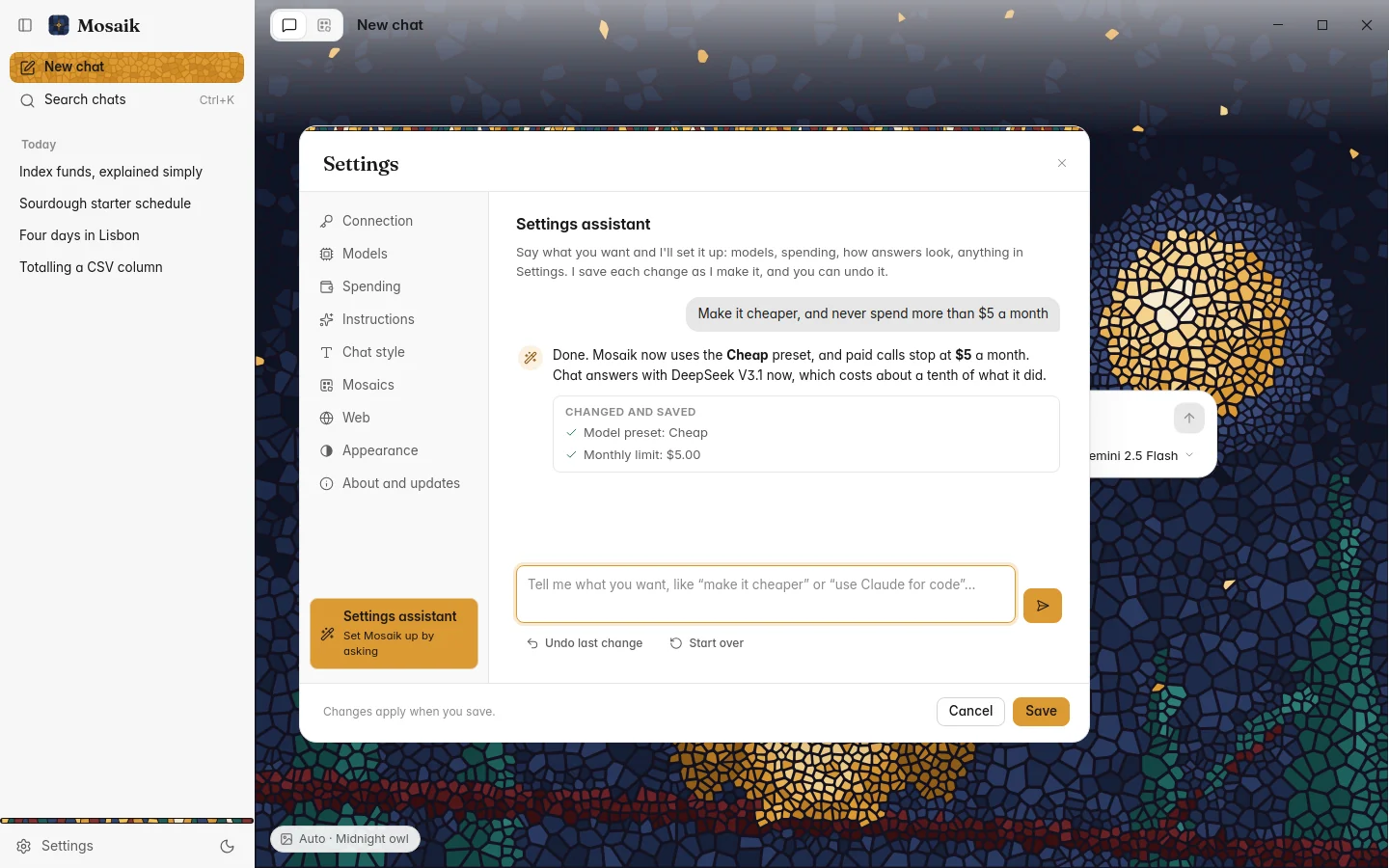
The last item in the Settings list. Tell it what you want in your own words: “make it cheaper”, “use Claude for everything”, “stop searching the web”, “set a $5 monthly limit”. It changes the settings, lists what it changed, and offers Undo.
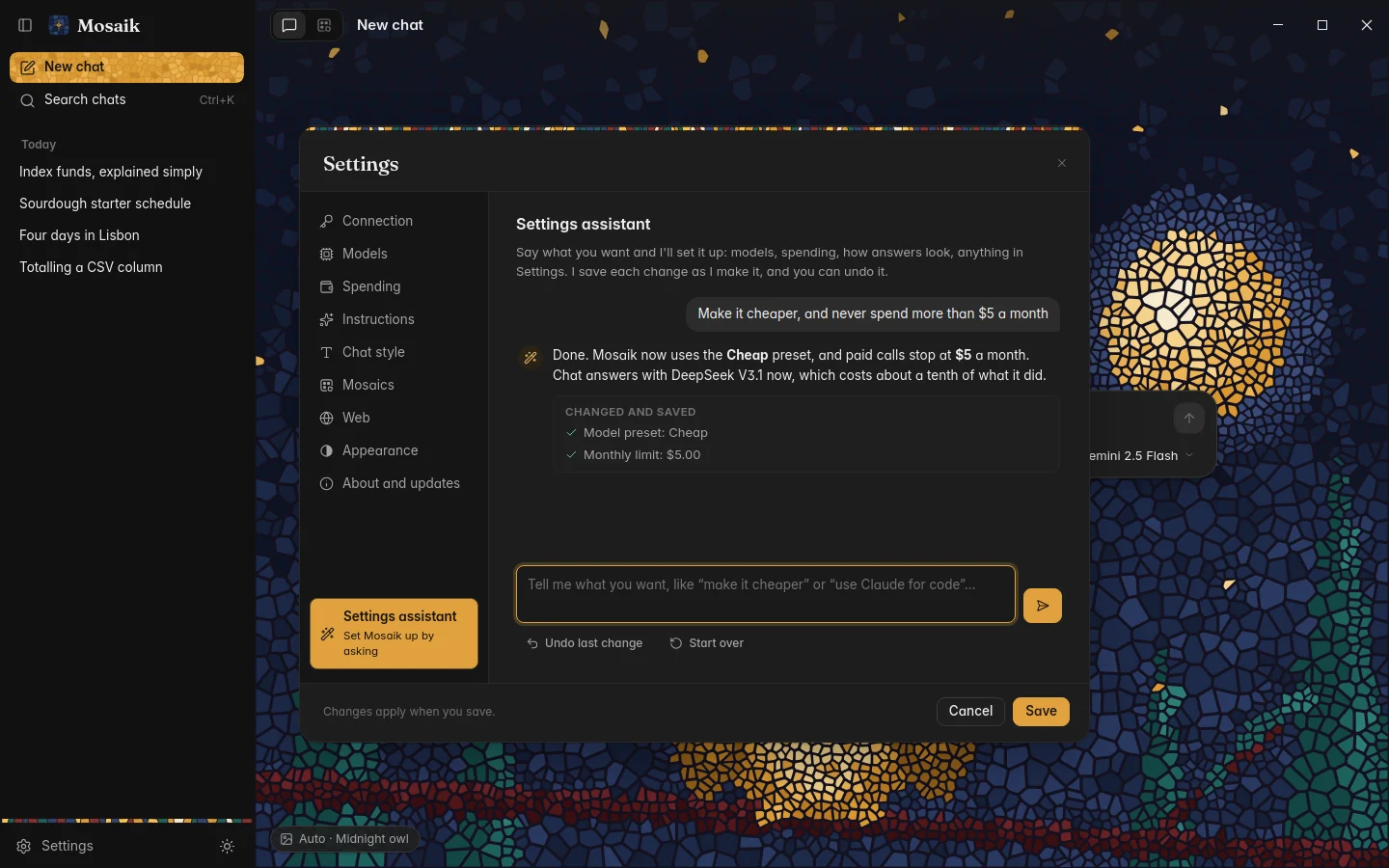
It can only touch settings on a fixed list, and never your key. It uses your chat model (or the first of your models that can use tools), so it costs about as much as a short chat.
The setup guide and tips
The setup guide opens on first launch: your key, a preset, a monthly limit and a quick tour. Open the setup guide in Settings › Connection or Appearance runs it again. When a new version adds something worth knowing, the guide comes back once as What's new, showing only the new steps.
Short tips appear in the corner the first few times you use each part of Mosaik. Settings › Appearance can turn them off, or show them all again.
Pictures and greetings
The pill in the corner of the New Chat page picks its picture: Auto follows the time of day, or pick one of the four to keep it. The same window has Personal greetings: now and then, the greeting mentions something from your recent chats. To write those, the titles of your recent chats are sent to your chat model a few times a day at most. Turn it off there if you'd rather they weren't.
How the window is drawn
Settings › Appearance › Advanced › Drawing chooses how the window reaches the screen. Automatic uses Direct3D, which suits most PCs. If the window flickers or draws oddly, try OpenGL. Software never flickers but is slower. The change takes effect after a restart.