
“Windows protected your PC”
The installer isn't code-signed yet. Click More info, then Run anyway. To check the file first, compare its SHA-256 with the one on the Download page:
Get-FileHash .\Mosaik-Setup-*.exeIf there's no Run anyway button, your organisation blocks unsigned programs. Ask whoever looks after your computer.
The key doesn't work
- Click Test connection in Settings › Connection. It says in plain words whether the key works and how much credit is left, with OpenRouter's own reply under Details.
- Check you copied the whole key, starting
sk-or-, with no spaces at either end. - On OpenRouter's Keys page, check the key still exists, is enabled, and hasn't hit a credit limit of its own. If in doubt, make a new key and paste that in.
- If Mosaik forgets the key after a restart, turn on Remember it securely in Settings › Connection. It's on unless you turned it off.
No models, or an empty model list
Mosaik fetches the list of models from OpenRouter when it starts. If that fails, the New Chat page says why: OpenRouter can't be reached, the key wasn't accepted, or no list came back. It offers to try again. Check your internet connection, and that a VPN, proxy or firewall isn't blocking openrouter.ai. Refresh models in the palette (Ctrl P) fetches the list again.
Until a key is added, the model button in the message box reads Connect OpenRouter.
Out of credit, or a limit reached
- OpenRouter credit: a new OpenRouter account has no credit, so paid models refuse. The setup guide notices and starts you on the Free preset. If a paid model refuses anyway, the message has two buttons: Use free models switches to Free and asks again, and Add credits opens OpenRouter.
- Mosaik's own limit: the message says which limit was reached, with Spending settings and Use free models. Raise the limit, use a free model, or wait for the day or month to turn over.
- Free model limits: OpenRouter caps how many requests a day free models take. The message explains it, with Use another model. When OpenRouter says how long to wait, the Retry button counts it down.
“Busy”, “overloaded” or no answer
Popular models get busy, especially free ones. The message under your question says so in plain words, keeps any part of the answer that arrived, and puts what the provider said under Details. Wait a moment and click Retry, or Ctrl R. If it keeps happening, pick another model for the chat from the button in the message box. Under Settings › Models › Advanced, Mosaik can also fall back to another free model when a free one doesn't answer.
The window flickers or draws strangely
In Settings › Appearance › Advanced, set Drawing to OpenGL, or to Software if that doesn't help, and restart Mosaik.
Finding the log
Mosaik writes what it does, and any errors, to mosaik.log in
%APPDATA%\Mosaik\Mosaik. Paste that path into File Explorer's address bar to
open the folder. The log never contains your API key.
Reporting a problem
Choose Report a problem in the palette (Ctrl P) or in Settings › About and updates. Say what happened, add your email if you'd like a reply, and leave Include the end of Mosaik's log on if it might help.
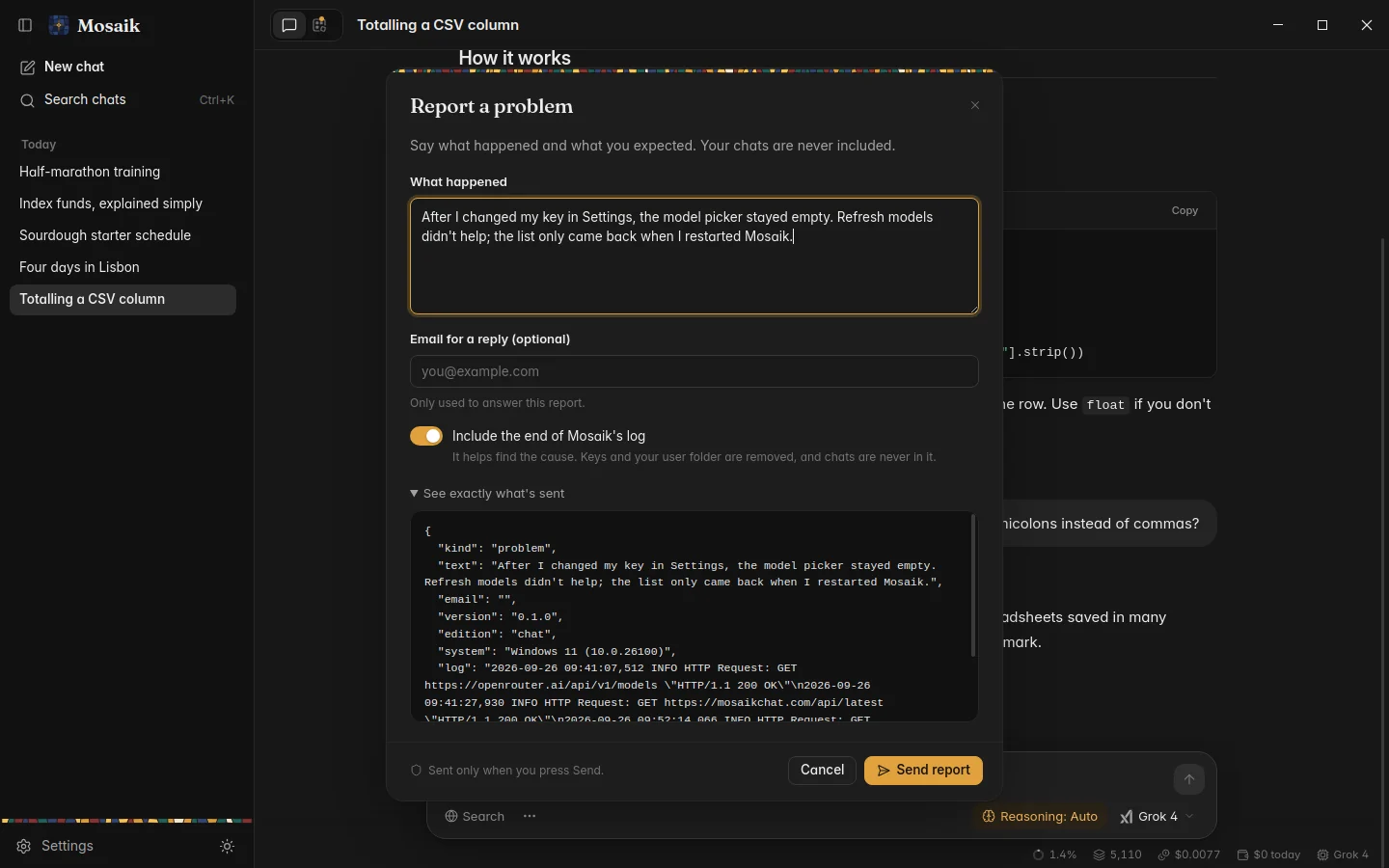
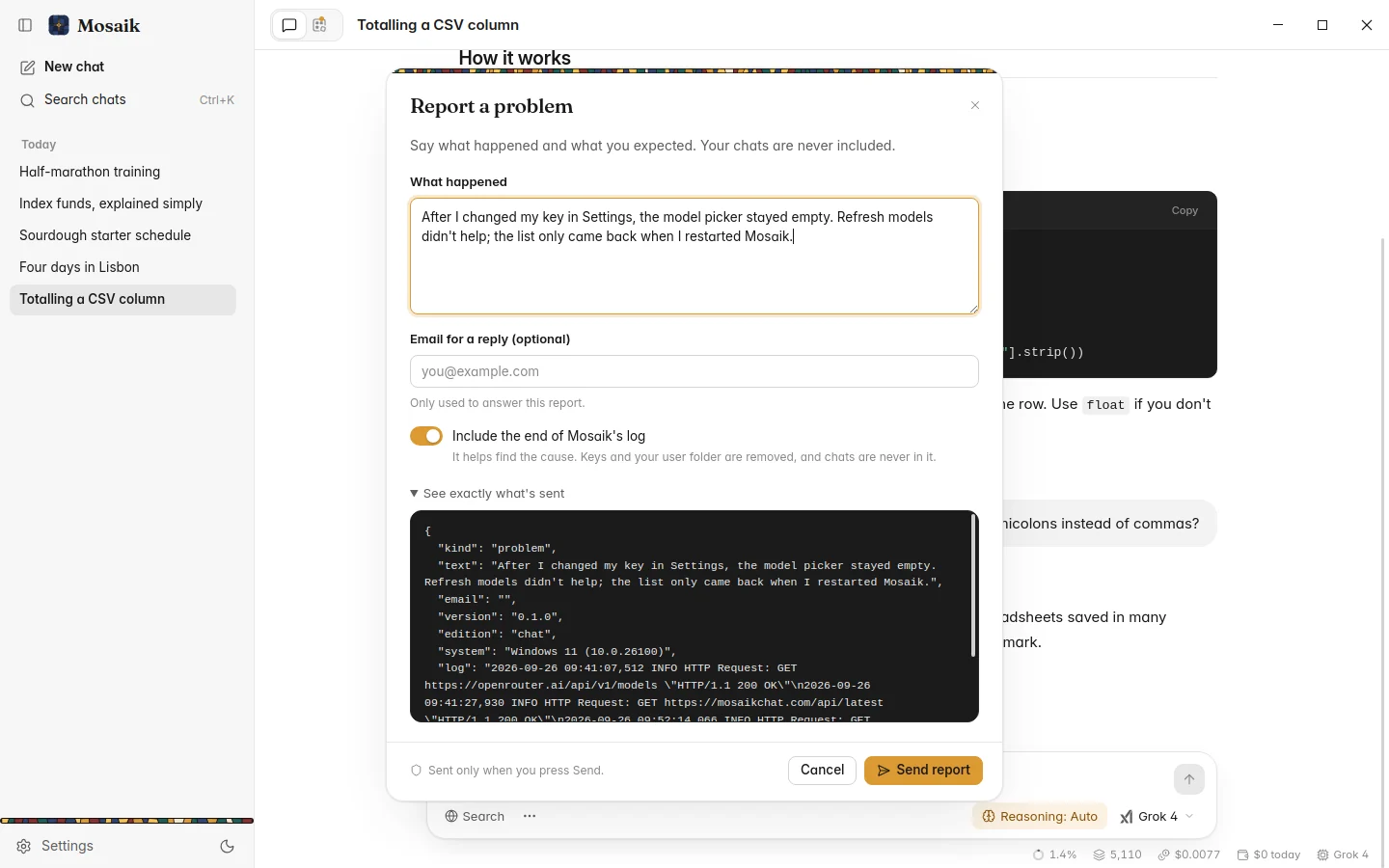
- Keys, tokens and your Windows user name are taken out of the log first.
- Your chats are never included.
- You see everything that will be sent, and nothing leaves until you click Send.
After sending, Mosaik shows a reference like MR-7K3Q9X2A. Mention it if you
ask about the problem in the community. If Mosaik hits an error, or closed unexpectedly
last time, it offers to send the same kind of report.
Still stuck?
Ask in the community, or open an issue on GitHub with your Mosaik version (Settings › About and updates) and the last lines of the log. Read the log through before posting it anywhere public.