
The New Chat page
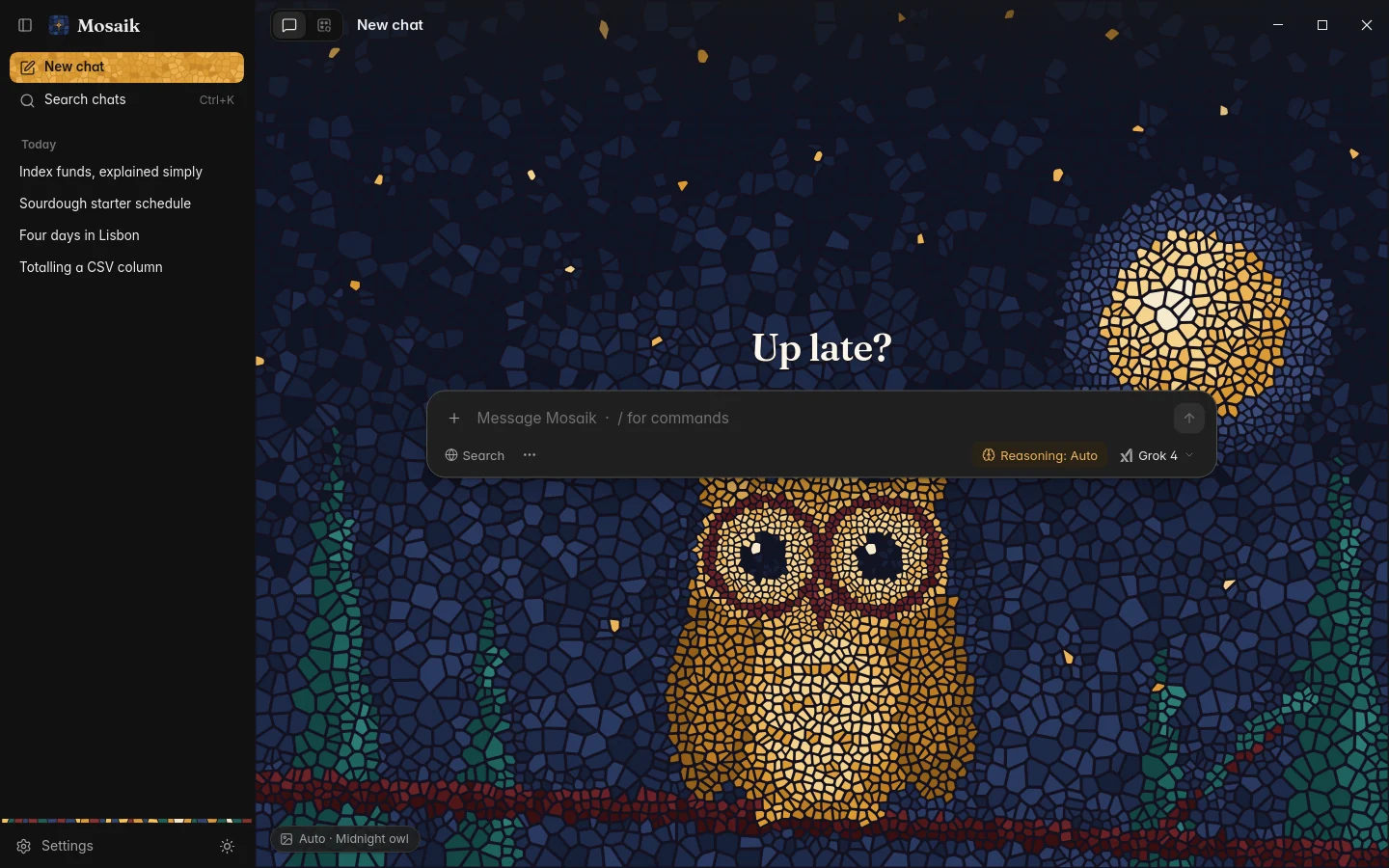
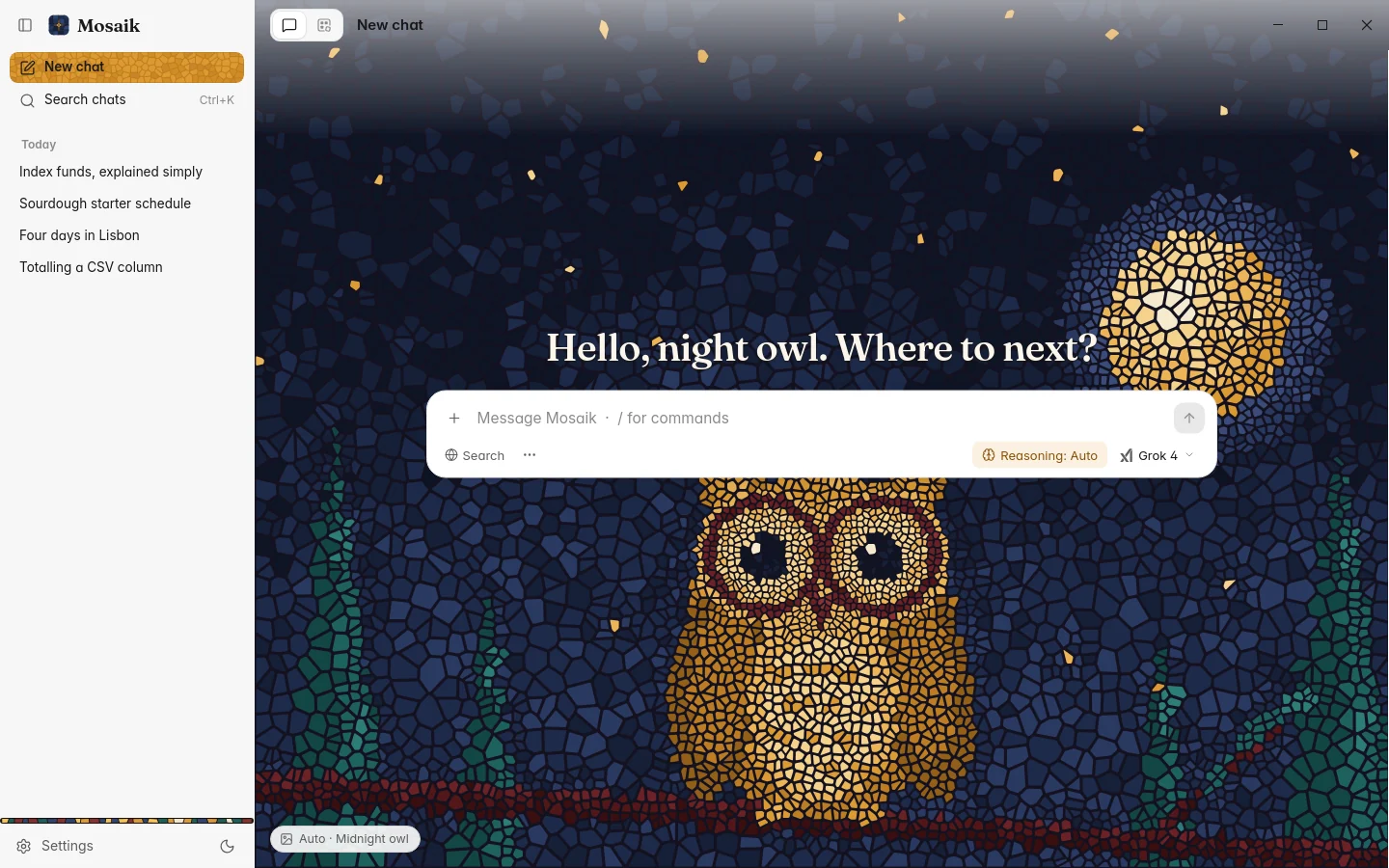
A new chat opens on a mosaic picture with the message box in the middle and a greeting above it. The picture follows the time of day. To keep one you like, click the pill in the bottom left corner and choose it, or choose Auto to go back to following the clock. Start a new chat with Ctrl N or the button at the top of the sidebar.
The message box
Enter sends, and Shift Enter starts a new line. In an empty box, ↑ brings back your last question to edit, and / opens the command palette.
The row under the box reads from both ends. On the left are the things that shape your request before it goes: Search (see Web search), and a … menu with this chat's settings, the prompt library and export. A Custom tag appears there when the chat has settings of its own. On the right are the things that answer it: a token estimate once your message gets long (it turns red when the message is too long for the model), the reasoning level for models that think, and the model itself.
A very long question folds in the conversation, with Show all to open it.
Attachments
Drop files anywhere on the window, paste them, or pick them with +.
- Images show as a chip in the message box and are sent with your message, for models that can see. The model browser marks those models Vision.
- Text files, including code, are quoted into the message with their name, so the model reads the contents.
The work line
While the model works, a single line above the answer says what it's doing: connecting, thinking, searching for something, reading a site. When the answer starts, the line sums up the turn, for example Searched the web and thought for 14s. Click it to see every step in order, with the searches, the pages read, the tools used and the model's reasoning where it shares it.
New text follows the bottom of the page only while you're at the bottom. Scroll up to re-read and the page stays put however much is written below. An arrow above the message box takes you back down.
Copying, editing and branching
Point at a message to see its actions. The newest answer keeps them showing. More are in the ⋮ menu and on right-click.
| Copy | Copies the message to the clipboard. |
|---|---|
| Edit | On your own messages. Editing a question removes everything after it, so the model sees the new version next. |
| Regenerate | On the newest answer. Asks again, with the chat's current model and settings. Ctrl R does the same. |
| Branch new chat | Starts a new chat with everything up to that answer, and leaves the original as it was. |
| Inspect raw payload | Shows the message exactly as it's stored, reasoning and sources included. |
| Delete | Removes the message. |
If a request fails, a card under your question says what went wrong in plain words, with what the provider said under Details. It offers Retry when the failure might go away, and a way round it when there is one: free models, more credit, another model or your key's settings. The card stays with the chat, so it's still there when you come back.
Finding and organising chats
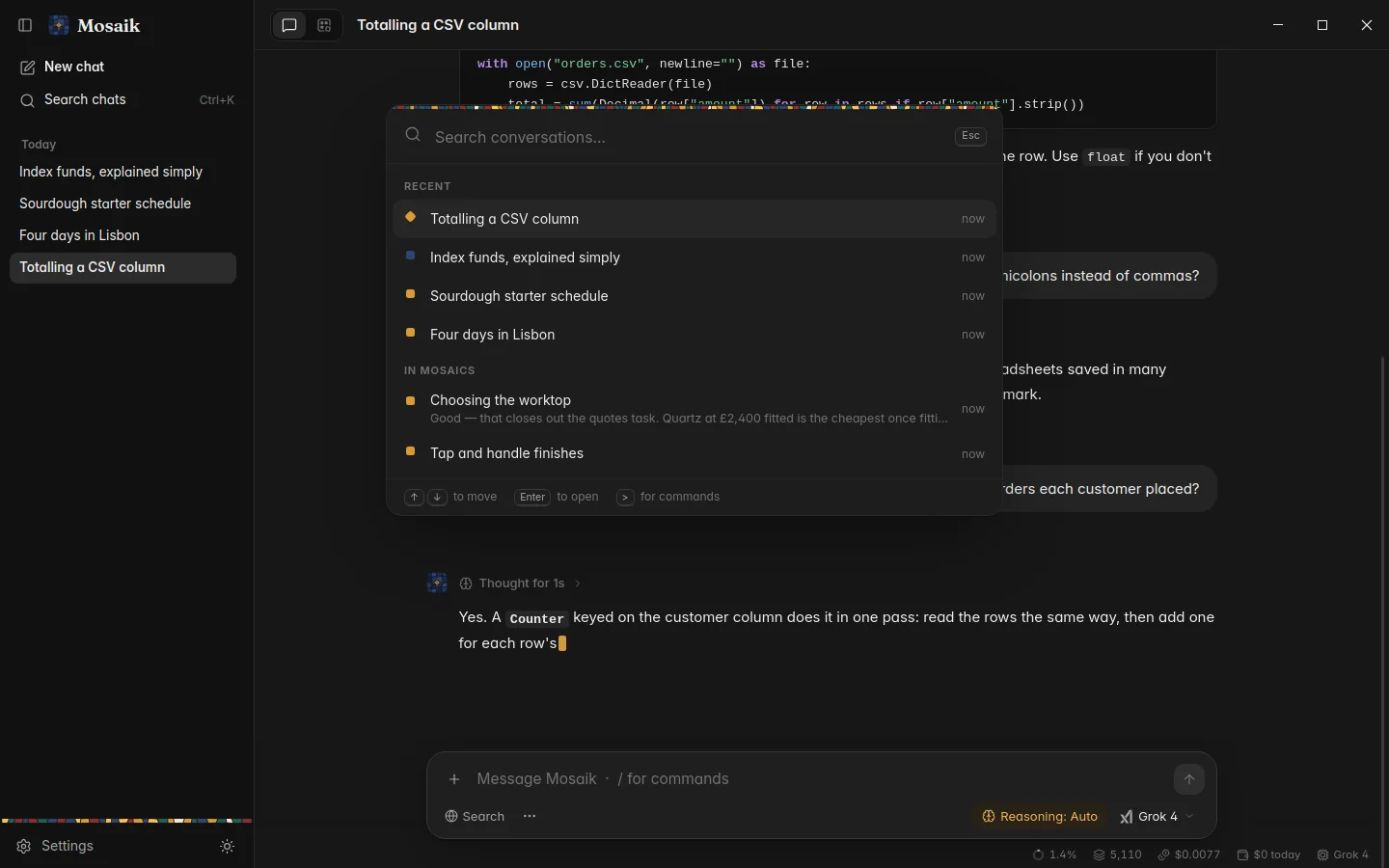
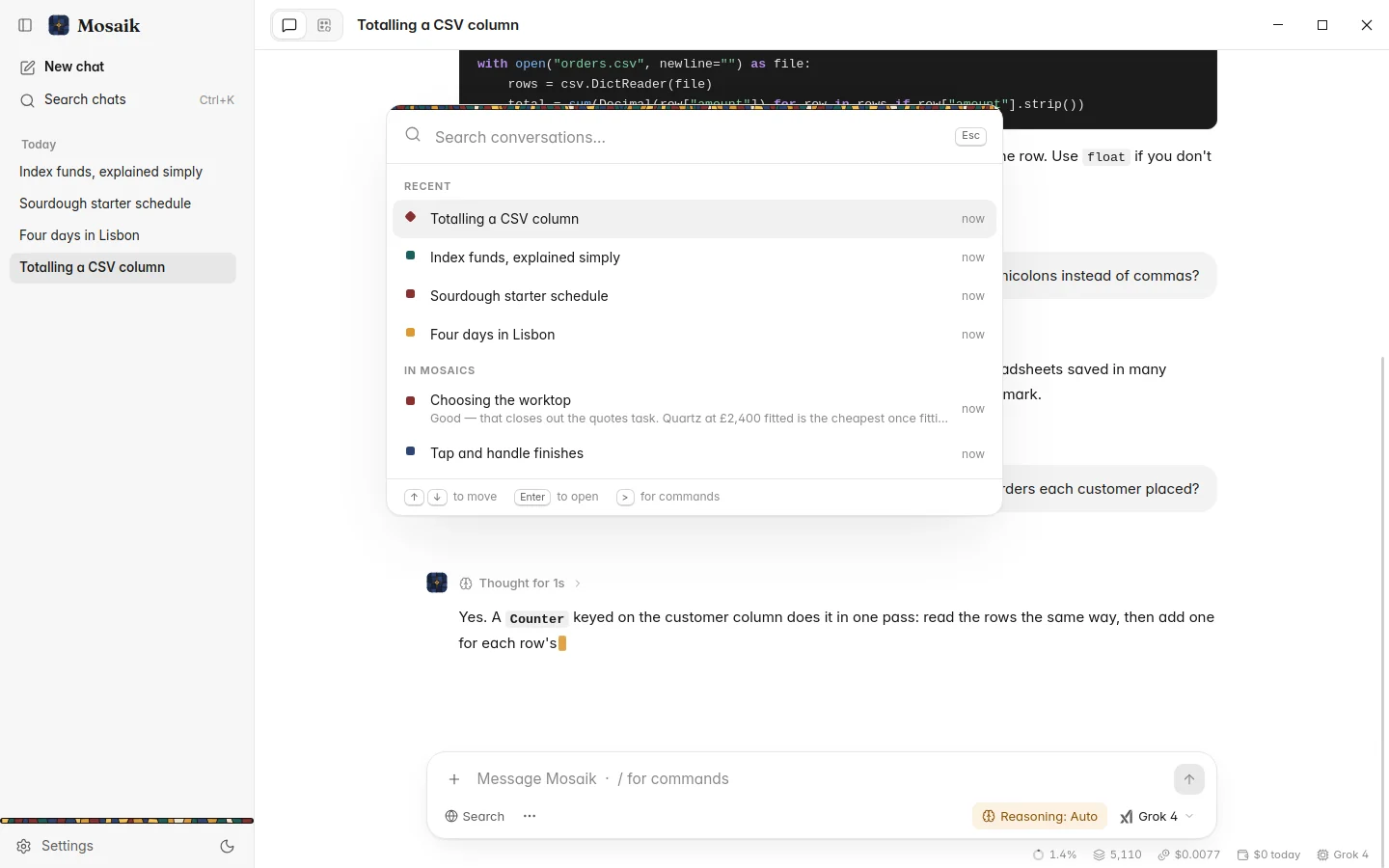
- Search every chat with Ctrl K. It looks in titles and in everything that was said, and shows the passage that matched.
- Find in this chat with Ctrl Shift F.
- Names. A chat names itself after its first answer. Rename it from its menu in the sidebar, or double-click the title at the top. Mosaik never renames a chat you named.
- The sidebar groups chats by Today, Yesterday and Earlier. Right-click a chat, or use its … menu, to rename or delete it. Drag the sidebar's edge to resize it, or fold it away with Ctrl B.
Exporting
Ctrl E saves the open chat as a Markdown file. Export as JSON is in the palette and in the message box's … menu. Both include the model's reasoning and the chat's own settings. Copy whole conversation, in the palette, puts the chat on the clipboard as Markdown.
Quick-ask
For a side question that shouldn't derail the chat. Select some words in any message (prose, a list, a line of code) and an Ask button appears next to them. Click it, or press Ctrl Shift K.
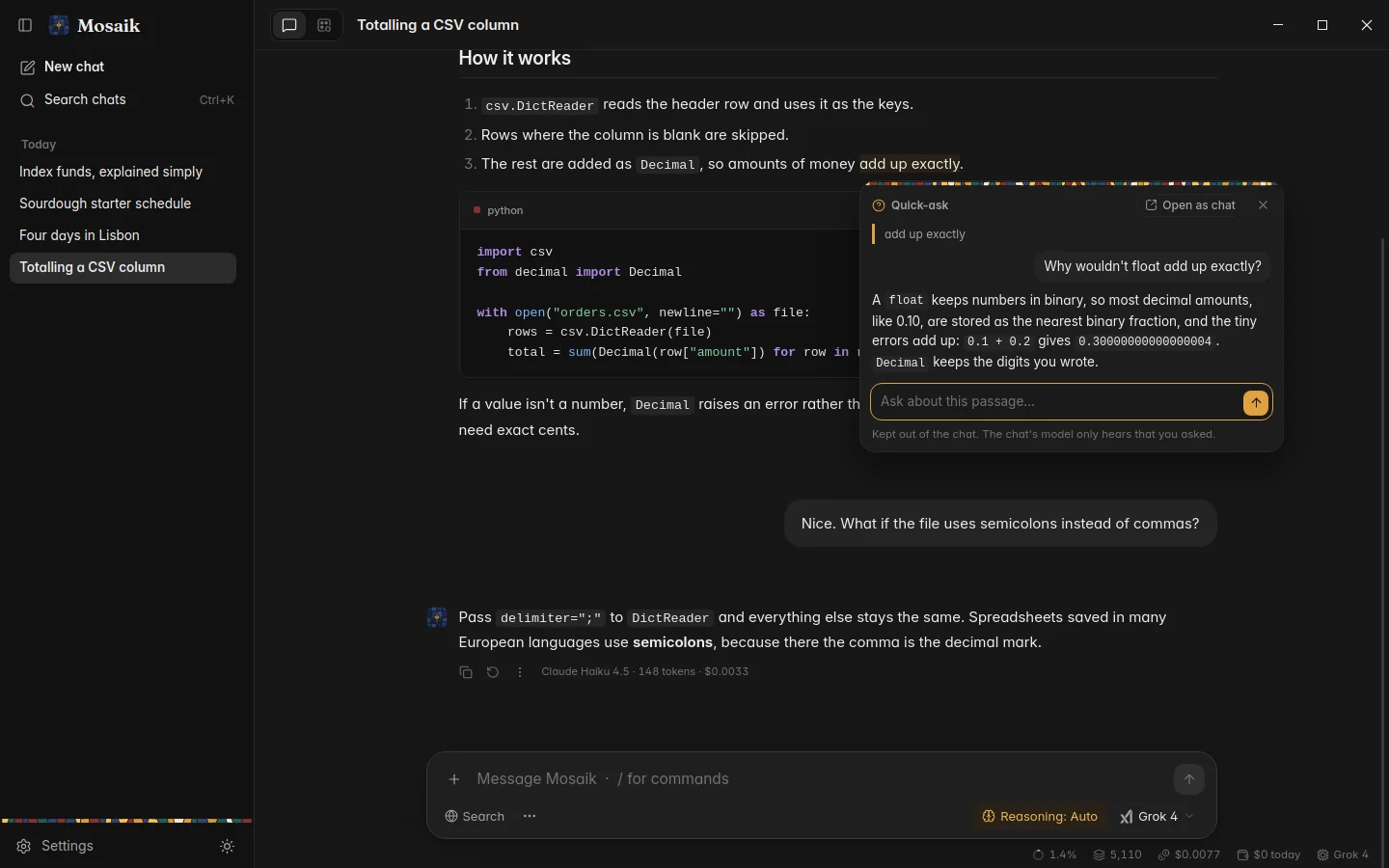
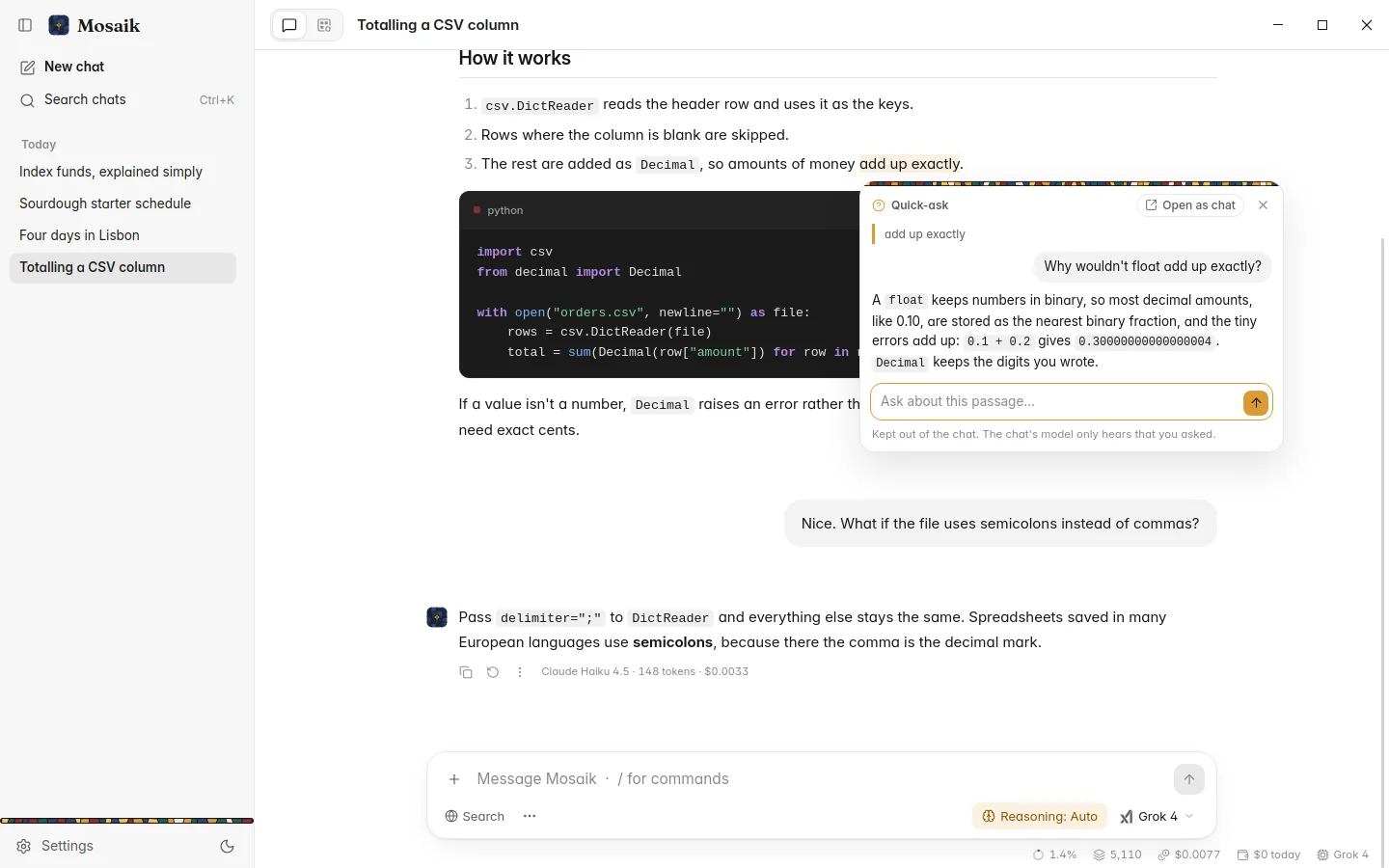
A small window opens by the passage. Your question goes to the chat's model with the passage and the recent conversation, so the answer has the context, but nothing is added to the chat. You can ask follow-ups in the window.
- Esc closes it and forgets the answers.
- Open as chat keeps the side conversation as a new chat.
- The main chat's model is told what you asked on the side (not the answers), so a later “like I asked a moment ago” still makes sense.
- Drag the window by its top to move it out of the way.